Follow along in Google AI Studio
Here are the steps that appear when you select How to use in Create with Google AI Studio on the creation screen, shown on the actual Google AI Studio screens. The yellow outline marks what to select.
- It's based on the PC screen. Steps where the location differs on a phone are noted separately.
- AI Studio appears in English. Button names are written exactly as they appear on screen.
- Simple mode and Expert mode, and components and descriptions, all follow the same steps. Where something differs, it's noted in that step.
Before you start
In MYMI, select Copy work info first, then select Open Google AI Studio. Your work's settings, image addresses, and current description are copied together.
- Components: in Simple mode, at the top of the Components step; in Expert mode, at the top of the Components tab.
- Description: in Simple mode, under the Description heading in the Optional step; in Expert mode, under the Description field in the Basic info tab.
You can use it within your Google account's free request allowance. No payment or API key is needed.
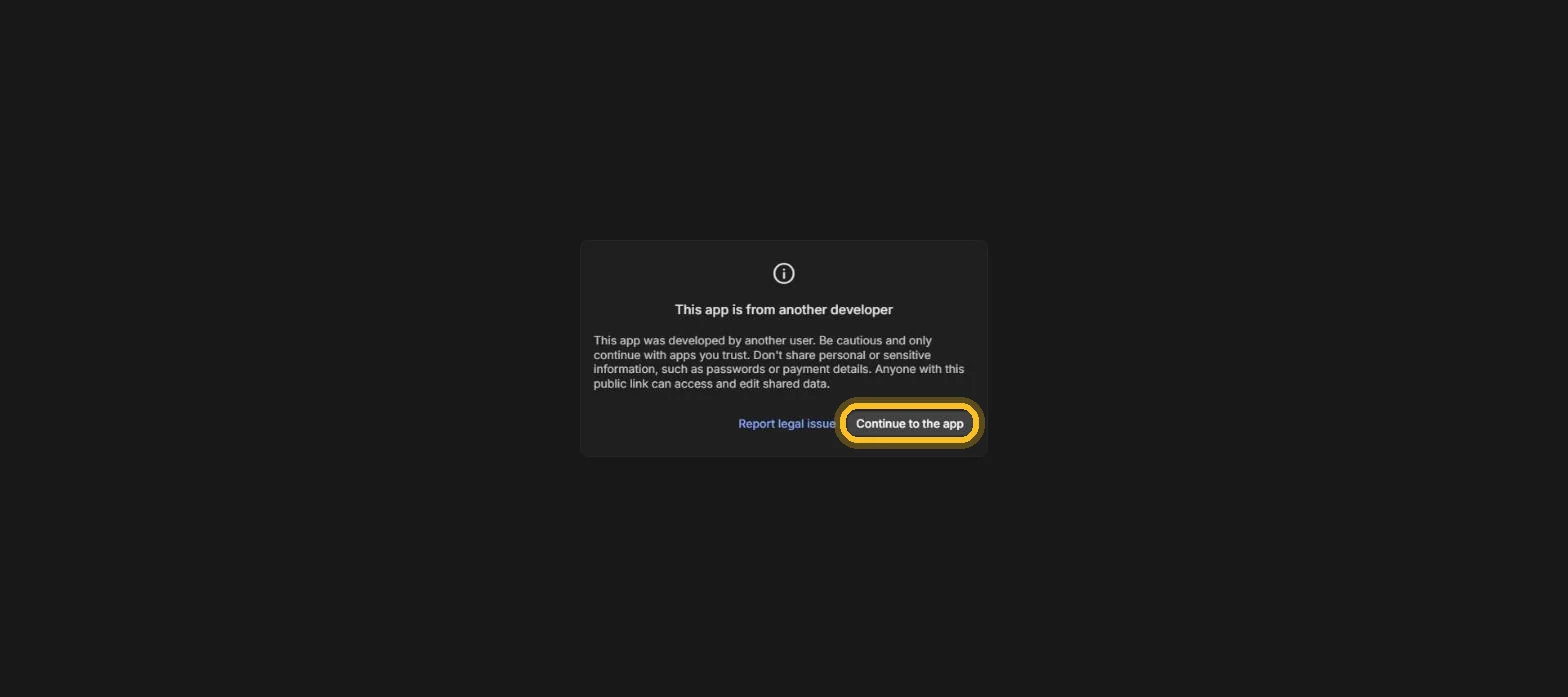
1. Select 'Continue to the app'
This Google notice appears first. It means the app was made by someone else. It's the workspace MYMI made, so just go ahead.
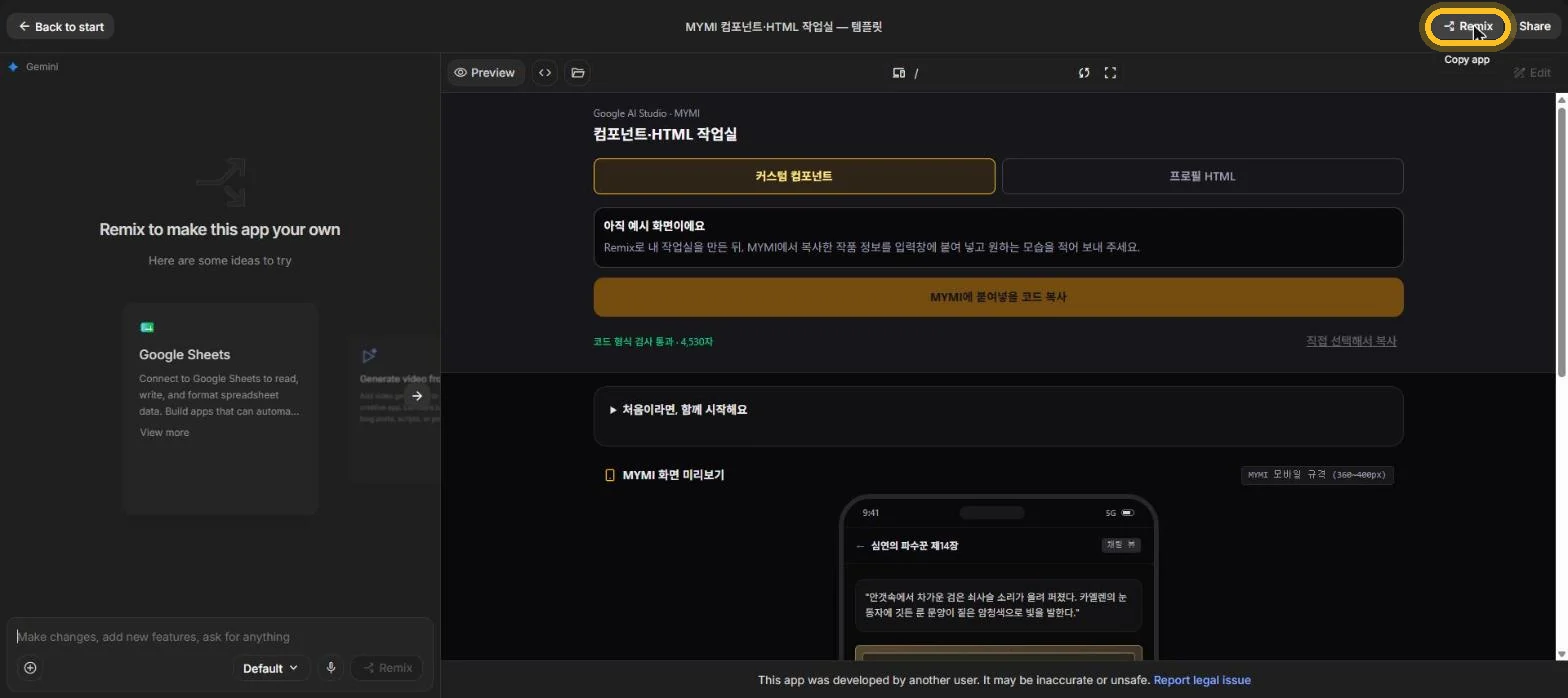
2. Select 'Remix' at the top right
Do this only the first time. It copies the shared workspace to make your own. Once it's made, skip this step from then on.
On a phone, select ⋯ at the bottom right of the screen to find Remix.
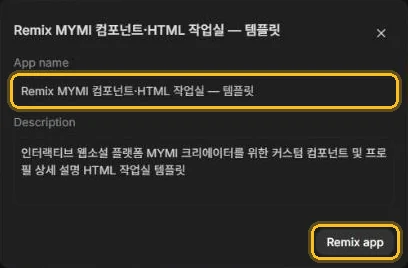
3. Name it and select 'Remix app'
Pick a name that's easy to find later. Example: Moonlight Bookstore workspace.
4. Paste it, describe what you want, and send
Paste the work info you copied in MYMI into the input at the bottom left. Below it, add a line or two about what you want, then select the arrow to send it.
Example: Make it look like a student planner that shows affinity and today's date.
On a phone, select Chat at the bottom of the screen to bring up the input. Press and hold the input to paste.

5. Wait while it's being made
If you see a progress message in English like 'Running for …', it's still being made. A component usually takes 2–5 minutes, and a description 1–3 minutes. Keep the window open and wait. You don't need to understand the tables or technical terms in Gemini's reply.

6. Check the result and copy the code
When you see '내 요청으로 만든 결과' (Result made from my request) on the right, it's done. Check the look in the preview below, then select MYMI에 붙여넣을 코드 복사 (Copy code for MYMI). For a description, first check at the top that 프로필 HTML (Profile HTML) is selected. To change something, just say so again in the input from step 4.
If copying doesn't work, select 직접 선택해서 복사 (Select and copy) just below it. On a phone, select Preview at the bottom of the screen to see the result.

7. Also copy the sentence that says when to show it
Do this for components only. Gemini's reply has a sentence that says when to show the component. Without it, the component won't appear in chats.

8. Paste into MYMI and save
Paste the code and the sentence you copied into the fields below, check the look in the preview, then save.
| What you're making | Where the code goes | Where the when-to-show sentence goes | Save |
|---|---|---|---|
| Simple mode component | Add component → JSX code field | Usage Description field | The arrow button at the bottom right |
| Expert mode component | Add component → JSX code field in the Components tab | Prompt tab. With Basic, that component's field under Component output rules | Save draft |
| Simple mode description | Use under Description in the Optional step → HTML field | None | Done |
| Expert mode description | Description field in the Basic info tab | None | Save draft |
Next time, open it from 'My apps'
Your workspace is in My apps on the left of the AI Studio home screen. Open it there and start from step 4. You don't need to Remix again.
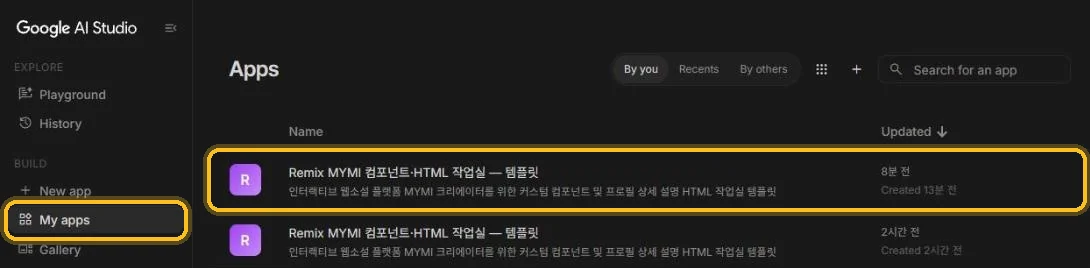
If Google changes the AI Studio screens, the button positions may change.
If you get stuck
I see a permission error like 'Failed to list API keys'
Reload the page and select Remix again.
Preview is blank
Wait a moment, then select the reload button above Preview.
I can't copy the code
Select 직접 선택해서 복사 (Select and copy), then select all of the code and copy it.
It says I've used up the free allowance
Continue after the allowance refills.
I see suggestions like 'AI Features'
Don't select them. They don't work in MYMI components or descriptions.
The art doesn't show in the description
Image addresses are included in the work info only when your assets have finished images. Make the images, then copy again. Images marked as adult-only are not used in the description.