Before you start
A MYMI work is made of settings the AI reads and screens users see. There are two ways to make them. Simple mode has you fill in fields. Expert mode has you write the settings the AI reads yourself. A new work starts in Simple mode.
Choose a creation mode
Select Create in the bottom menu to open the Create screen. At the very top of the first tab, Basic Info, is the Creation mode field. The web and the app have the same layout.
- Simple mode: Fill in the fields and the AI settings are built for you.
- Expert mode: Write the settings and output rules the AI reads yourself.
Select one and the mode switches, then the Basic Info tab of that mode opens. Simple mode is selected the first time. After that, the screen opens in the mode you used last on this device.
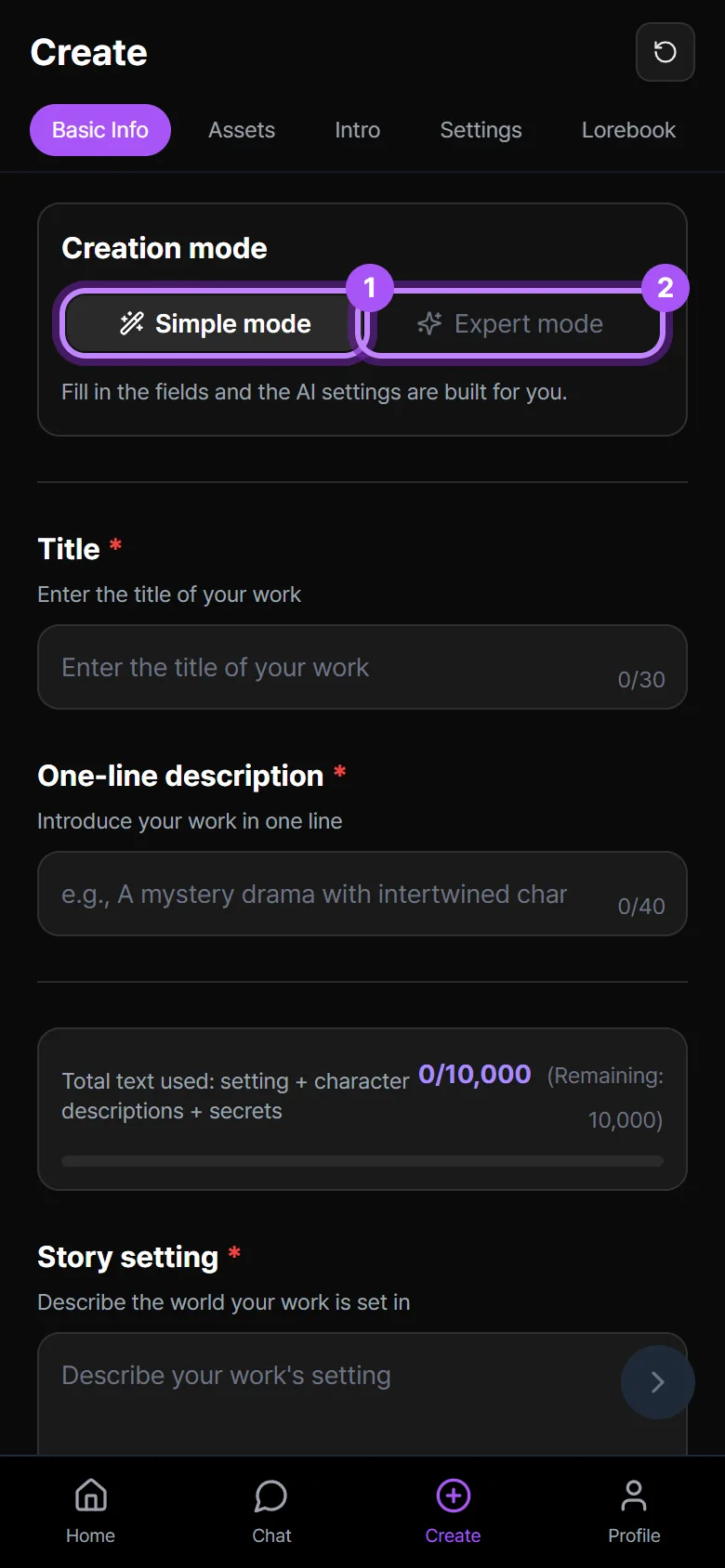
How the two modes differ
| Simple mode | Expert mode | |
|---|---|---|
| Where you write the AI settings | The world, characters, and secret fields in Basic Info. MYMI gathers them and hands them to the AI | The Prompt tab. Fields split up with Basic, or one block with Write it myself |
| Images | You write a situation description for each image and link a character. The AI reads the descriptions and picks a fitting image | You organize them with folders and codes, and write in the prompt when to show them |
| Components, like status windows | You write when to use each component in its Usage Description | You write it in the prompt's Component output rules |
| Screen | Seven steps. You move through them with the next button | Seven tabs. You can start with any tab |
| Saving | Saved to the work each time you select the next button | Saved automatically when you switch tabs. There are Save draft and Publish |
| Editing a published work | Your edits take effect the moment you move on with the next button | Your edits take effect only when you select Apply changes |
| Images you must have | At least 1 asset and 1 profile image marked with ★ | 1–10 Cover images. Assets are optional |
A few things are the same in both. Review before a work goes public and Content Management work the same way, and so do the settings that decide your Leaf rate, such as Publishing scope, Image source, and Monetization limits. Choose your work settings explains how to pick them.
Which mode should you choose
Simple mode fits if:
- This is your first work.
- You want to start by just writing the world and characters into fields.
- Telling the AI "use this image for this scene" is enough for your images.
Expert mode fits if:
- You want to design the settings and story rules you give the AI yourself.
- You want to set exactly when images and components appear, using rules.
- You want several covers, or you want to move between tabs freely as you work.
Neither one is better. Pick the one that matches how you want to make your work. The work page looks a little different depending on the mode.
What happens to what you wrote when you switch modes
- The two modes keep separate drafts. When you switch modes, what you wrote stays in its own mode and isn't carried over to the other one. Switch back and you can pick up where you left off.
- ↺ (Reset creation content) clears only the draft of the mode you're in. The confirmation window says which mode's draft it clears.
- A draft saved to the server stays in Profile → Content Management as In progress. Resetting doesn't delete it.
The first time you choose Expert mode, a window appears. Read how it works and select Switch to Expert mode to switch. Select Cancel and the mode stays as it is. You only see this window once.
At the bottom of the window it says, "What you wrote in Simple mode stays there. It isn't moved to Expert mode."
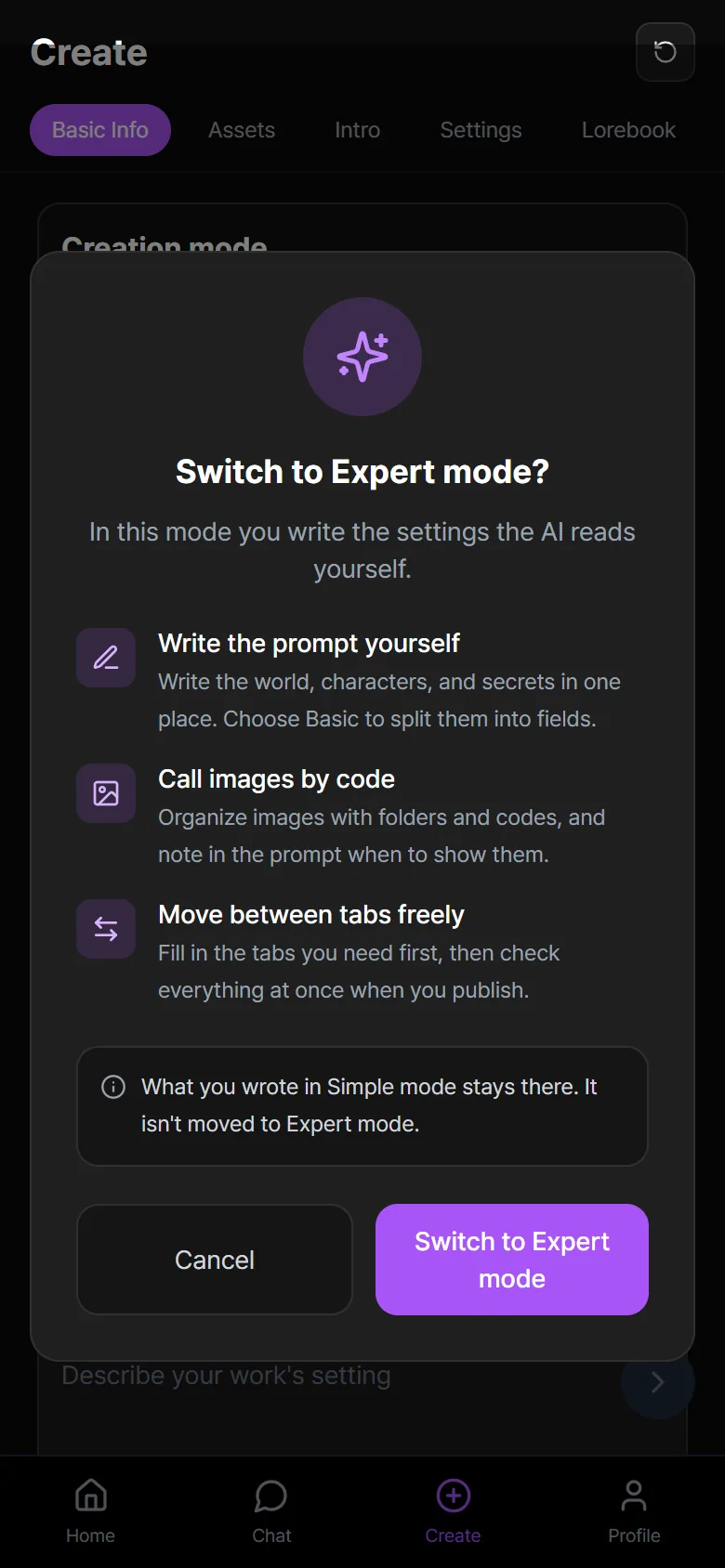
What you're typing exists only on this device until it's saved to the server. If you log out or log in to a different account, what you haven't saved is cleared. In Simple mode, select the next button. In Expert mode, switch tabs or select Save draft. When saving happens differs by mode, and each mode's guide explains it in detail.
A work opened from Content Management keeps its mode
When you select Edit on a work in Profile → Content Management, it opens in the mode you made it in. The Creation mode field is locked.
- You can't change the mode of a work you've already made. To remake it in the other mode, create a new work and copy the settings over. For a Simple mode work, Move to Expert mode shows how.
- To start a new work, select ↺ to clear the editor. That unlocks the field and lets you choose a mode again. The work in Content Management stays as it is.
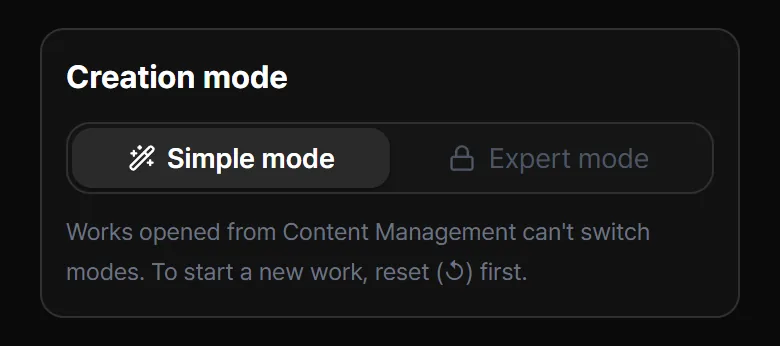
If the current mode's editor has unsaved changes and you open a different work from Content Management, a confirmation window appears. Select Open and the unsaved changes are lost and that work opens. Select Cancel and nothing changes.
The example work in this guide
The creation guide explains by building one example work, Underground Seoul, from start to finish. Both modes' guides use the same work, so you can compare what's different when you build the same work both ways.
In 2031, after the surface is contaminated, Seoul is sealed off and becomes an underground city. The user wakes up in the quarantine station with no memory and meets the guide Kang Min-woo and the station doctor Lee Seo-yeon.


All the example images were made with MYMI's image generation.
If you get stuck
The other button in the Creation mode field has a lock and I can't select it
That's because you opened the work from Content Management. You can't change the mode of a work you've already made. To start a new work, select ↺ to clear the editor, then choose a mode. The work in Content Management isn't deleted.
I switched to Expert mode and what I wrote is gone
The two modes keep separate drafts. What you wrote in Simple mode isn't moved to Expert mode, but it isn't gone either. Select Simple mode in the Creation mode field again and it's still there. To bring it over, copy it by hand by following Move to Expert mode.
A "Switch to Expert mode?" window appears
It's a window you see once, the first time you choose Expert mode. Read how it works and select Switch to Expert mode. If you haven't made up your mind yet, select Cancel. The mode stays as it is.
I selected Edit in Content Management and it says "You have unsaved changes"
That's because the editor for that work's mode still holds unsaved content from another work or a new one. Select Open and that content is lost and the work you chose opens. To keep it, select Cancel, go back to the editor, and save first. Drafts you've saved are in Content Management as In progress.
The image creation window has an "Expert Mode" too
The Expert Mode you unfold in the last step of generating an image is a different feature from the creation mode. It's where you change image generation settings (negative_prompt, guidance, and so on), and it has nothing to do with how you make the work. Both modes use the same image generation window.
Are "Basic" and "Write it myself" different from Simple mode and Expert mode?
Yes. Basic and Write it myself are the two ways to write that you choose in Expert mode's Prompt tab. Simple mode has no Prompt tab. Write the prompt has the details.
I selected Reset and the work I was making disappeared
Reset only clears the creation screen. Your saved draft stays in Profile → Content Management as In progress. Select Edit to open it again.