Learn about Expert mode
Expert mode is the way you write the settings and output rules the AI reads yourself. The seven tabs on the creation screen split the settings the AI reads and the screens users see between them. Get the big picture here, then go on to Create your first work.
Before you start explains how it differs from Simple mode and which one to choose.
Open in Expert mode
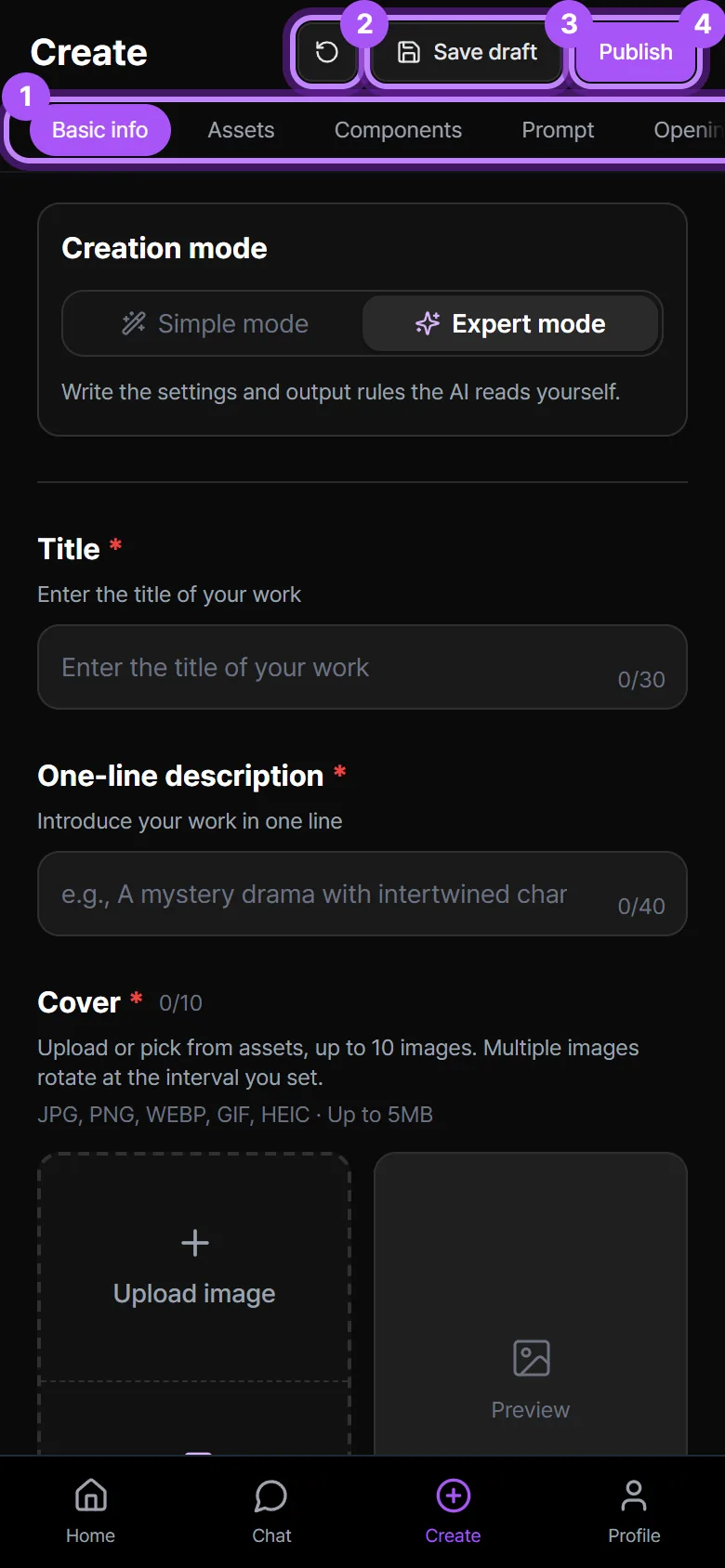
Select Create in the bottom menu, then select Expert mode in Creation mode at the top of the Basic info tab. A window appears the first time you choose it. The web and the app have the same layout.
- Tab row: Basic info · Assets · Components · Prompt · Openings · Lorebook · Settings. There's no fixed order, so you can start with any tab.
- ↺ (Reset creation content): Clears what you're entering and starts over. Drafts you already saved stay in Content Management.
- Save draft: Saves what you've written so far as a draft.
- Publish: Checks that nothing is missing and completes your work. If something is missing, it takes you to that tab and tells you.
What the seven tabs do
| Tab | What you write | Who reads it |
|---|---|---|
| Basic info | Title, one-line description, cover, description, genres, hashtags | Users (work page) |
| Assets | Images to show in chats, and the code attached to each image | Users (chat screen) |
| Components | UI that pops up inside chats, like status windows and choices | Users (chat screen) |
| Prompt | The world, characters, hidden settings, story rules, and when to use images and components | The AI (every reply) |
| Openings | The first message the AI sends when a chat starts | Users and the AI (the first scene) |
| Lorebook | Settings sent to the AI only when certain words come up in a chat | The AI (when a keyword appears) |
| Settings | Management items such as visibility, publishing scope, audience, and content rating | MYMI (classification and visibility) |
Even if you describe your characters in detail in the description, the AI doesn't read it. Put the settings the AI needs to know in the Prompt tab. Think of it as preparing one text to show on the work page and another to give the AI.
What the smallest work needs
You can complete a work without images, components, or a lorebook. This is everything you need:
- Basic info: Title, one-line description, 1 cover image, description, 1–2 genres, and at least 1 hashtag
- Prompt: The work info of the Basic preset, or a prompt you write yourself
- Openings: 1 opening with a title and content
- Settings: Publishing scope, monetization limits, image source, audience, and marketing consent. Visibility and content rating start out set to Public and All ages.
For the cover, upload an image you already have, or bring in an image you made in the Assets tab. You can add assets later.
When your work is saved
- If the draft has changes, it's saved automatically when you switch tabs.
- The first time you upload or generate a cover or asset image, the draft it needs is saved first. You don't have to select Save draft beforehand.
- After the draft has been saved once, adding, deleting, moving, or re-coding images in the Assets tab is saved right away.
- Text isn't saved as you type. If you've been writing in one tab for a while, select Save draft.
- If you open the same work in two places, like a PC and a phone, and edit it in both, whichever you save last is what's kept. To continue on another device, select Save draft where you were editing (Apply changes for a work you've already published), then open the work on the other device from Profile → Content Management by selecting Edit.
- A work you've already published has no Save draft. Your edits take effect only when you select Apply changes. Details are in Publish and edit.
Autosave happens when you switch tabs and when you start an image task. If you close the screen while you're still writing in a tab, what you wrote last may not be saved. If you log out or log in to a different account, what you haven't saved is cleared.
If you have a work made in Simple mode
If you open a work made in Simple mode from Content Management → Edit, it opens in Simple mode. You can't change the mode a work was made in, so it doesn't become an Expert mode work. To copy the settings into a new work, see Move to Expert mode.
The example work in this guide
The Expert mode guide follows the example work Underground Seoul. It uses the same settings as the work info example on the creation screen. The work's introduction and images are in Before you start. Prepare images shows how to make the example images.
If you get stuck
I try to make an image and it says "Identity verification is required to generate AI images."
Image generation in the creation screen is free, but only accounts that have completed phone verification can use it. You can't start verification on the creation screen, so do this:
- Select Save draft at the top right (Apply changes for a work you've already published) to save your work.
- Select Check-in and get Sparks in Profile → Attendance Check and complete phone verification.
- Open the work again from Profile → Content Management and generate the image.
You don't need verification just to upload images you already have. For how to verify, see Age confirmation and phone verification.
Do I have to fill in the tabs in order?
No. You can start with any tab, and the required items are all checked at once when you select Publish.
Can I change a work made in Expert mode to Simple mode?
There's no way to do that. The mode a work was made in doesn't change. To remake it in Simple mode, set Creation mode to Simple mode, create a new work, and copy the settings you wrote in the prompt into the world, characters, and secret fields. You'll also need to sort out your images again with situation descriptions. (Learn about Simple mode)
Are "Basic" and "Write it myself" in the Prompt tab different from the creation modes?
Yes. Basic and Write it myself are the two ways to write that you choose inside the Prompt tab. Simple mode and Expert mode are the whole way you make a work. In Expert mode you can use either way of writing. (Write the prompt)