Write the opening
The opening is the first message the AI sends when a chat starts. It's the first scene users meet, so it sets the first impression of your work. You need at least 1 opening.
This is the Expert mode guide. For Simple mode, see Write the settings and the intro.
Make an opening
- Write the Opening title. It's the name users see when they choose a starting scene. You can use up to 100 characters.
- Write the first message in the field below. Up to 2,000 characters.
Select Add on the opening list row to make more openings. If you make several, users pick one when they start a chat. To delete one, select it in the list and then select the × next to its name. You can't delete an opening if it's the only one.
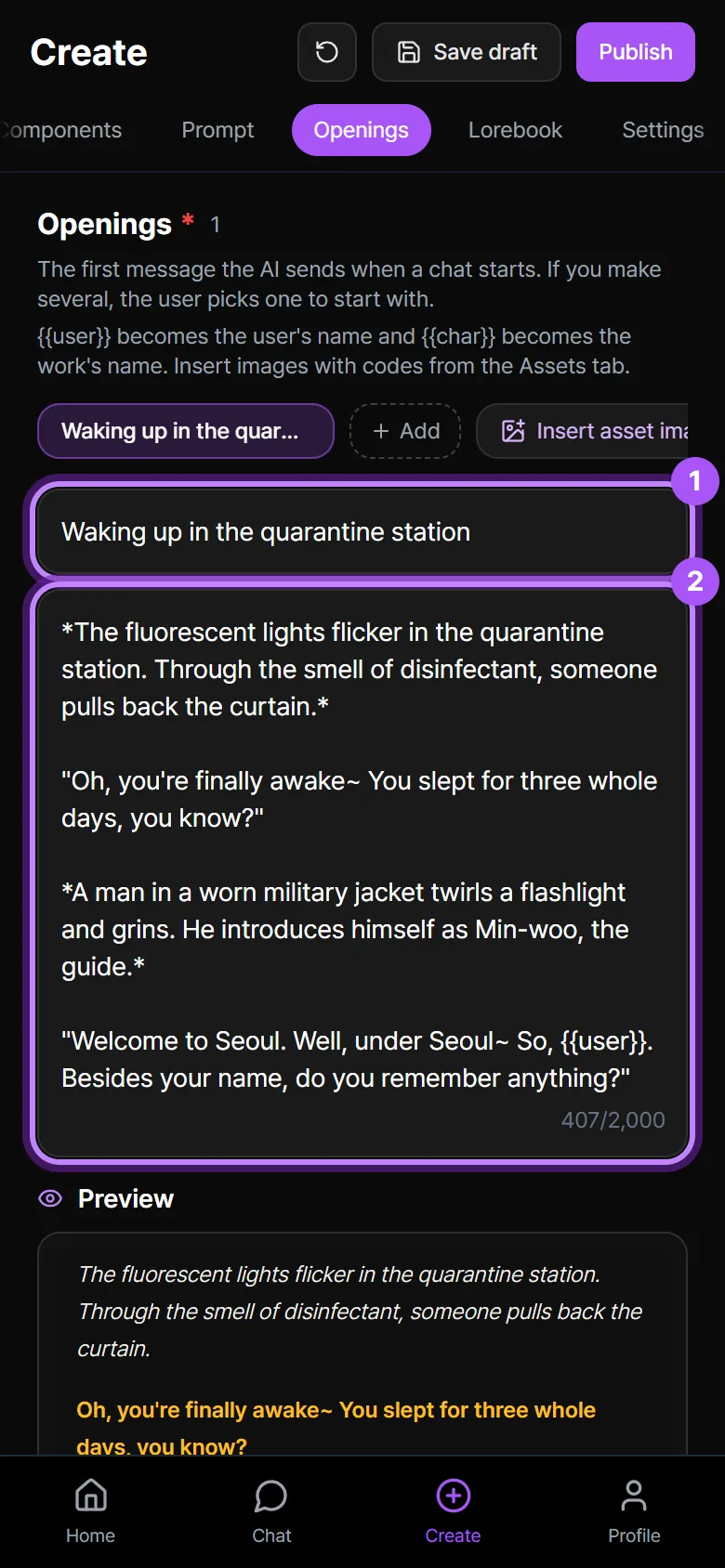
Write the first message the way a chat shows it.
| How to write it | How it looks |
|---|---|
*The fluorescent lights flicker in the quarantine station.* | Actions and narration (italic) |
"Oh, you're finally awake~" | Dialogue (accent color) |
{{user}} | Becomes the user's name in chat |
{{char}} | Becomes the work's title in chat. It is not a character's name |
In a work with several characters, {{char}} puts in the work's title, not a character's name. In the opening, write names directly, like "Min-woo".
Insert images
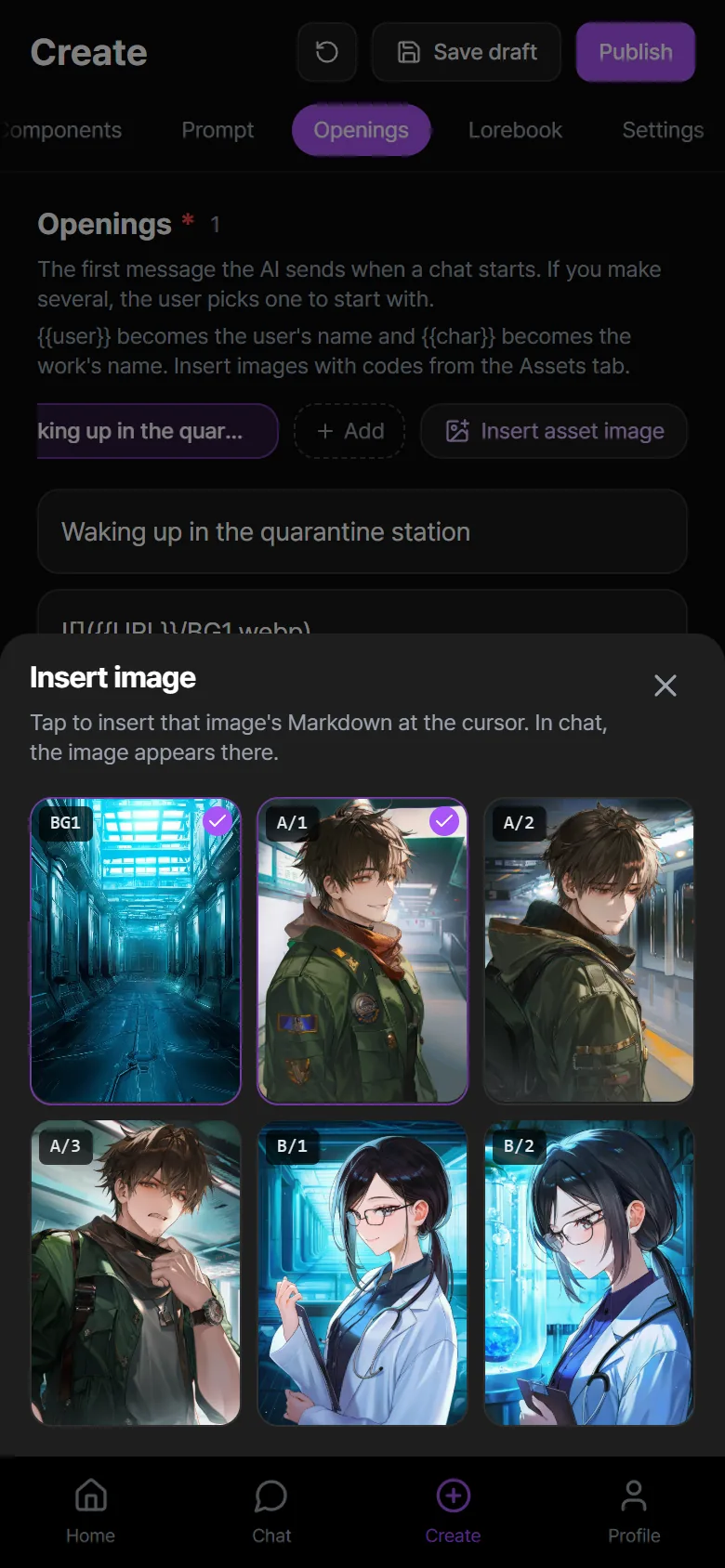
If the Assets tab has images, you can put them in the opening. In a chat, the image appears where you put it.
- In the first message field, select the spot where you want the image to go to place the cursor.
- Select Insert asset image.
- Select the image to insert, and a line like
is added at the cursor.
An image appears in the list once you upload it in the Assets tab and set its code.
Check where the images appear in the Preview. If no image matches a code, a notice saying "the Assets tab has no image for this code" appears in its place.
In the example, the corridor background is at the top, and Min-woo's smiling image comes right before his first line.
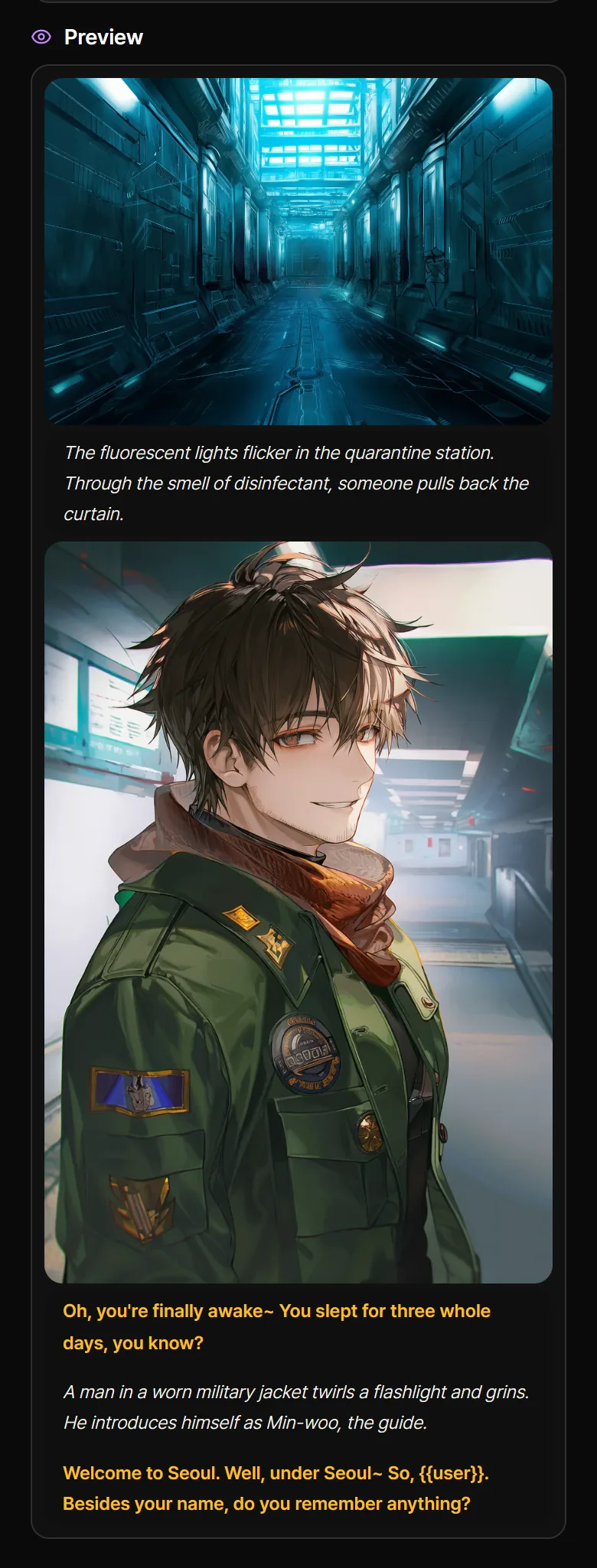

*The fluorescent lights flicker in the quarantine station. Through the smell of disinfectant, someone pulls back the curtain.*

"Oh, you're finally awake~ You slept for three whole days, you know?"
Images with Unlock required turned on in Assets are also shown from the start in the opening and the cover, because those are places users see right away. Don't put images you want to keep hidden in the opening.
Tips for a good first scene
- End the first message by handing the user something to do. The example ends with the question "Besides your name, do you remember anything?", so users can answer right away.
- Match the opening's tone to the prompt. If you wrote "Casual; drawls the end of sentences" in the prompt, write the opening's dialogue that way too. The AI tends to carry on the tone of the first message.
- Try making several starting scenes. Openings with different starting points in the same world let users choose where to begin. Examples: "Waking up in the quarantine station", "In front of Exit 7"
If you get stuck
It says "Some openings have no title." or "Some openings have no content."
One of your openings has an empty title or content. Select each one in the opening list to check. To get rid of an opening you won't use, select it and then select the × next to its name.
I select Insert asset image and it says "Upload images and set their codes in the Assets tab to insert them."
There aren't any images you can insert yet. Upload or generate an image in the Assets tab, finish it, and set its code, and it appears in the list.
The preview shows {{user}} as it is
The preview doesn't replace it. It turns into the user's name in a real chat.