Show images in chat
An image in a chat shows up when the AI writes a line like  into its reply. The AI decides which image to put in which scene by following the rules you wrote in the Prompt. This page is the step after you made assets in Prepare images.
This is the Expert mode guide. In Simple mode, the AI picks images by their situation descriptions. See Assets and AI images and Fields and limits.
How it all connects
| Where | What | Example |
|---|---|---|
| Assets tab | Set an image's path with a folder and a code | Folder A + code 1 → A/1 |
| Prompt tab | Write what each code means and tell the AI when to show images | A=Kang Min-woo, 1=laughing |
| Chat | The AI picks the code that fits the scene and puts it in the reply | A/1 when Min-woo speaks with a laugh |
{{URL}} is the spot that is replaced with the real image address. You don't have to write the address yourself.
Basic: write what each code means
With the Basic preset, the codes from the Assets tab appear as a table in Image output rules. You only need to write a short meaning.
- Character codes: The character's name. Example:
Kang Min-woo - Situation codes: When the image appears. Example:
laughing - Other codes: What it is. Example:
quarantine station corridor - Exceptions: A situation a character doesn't have. Example:
No B/3
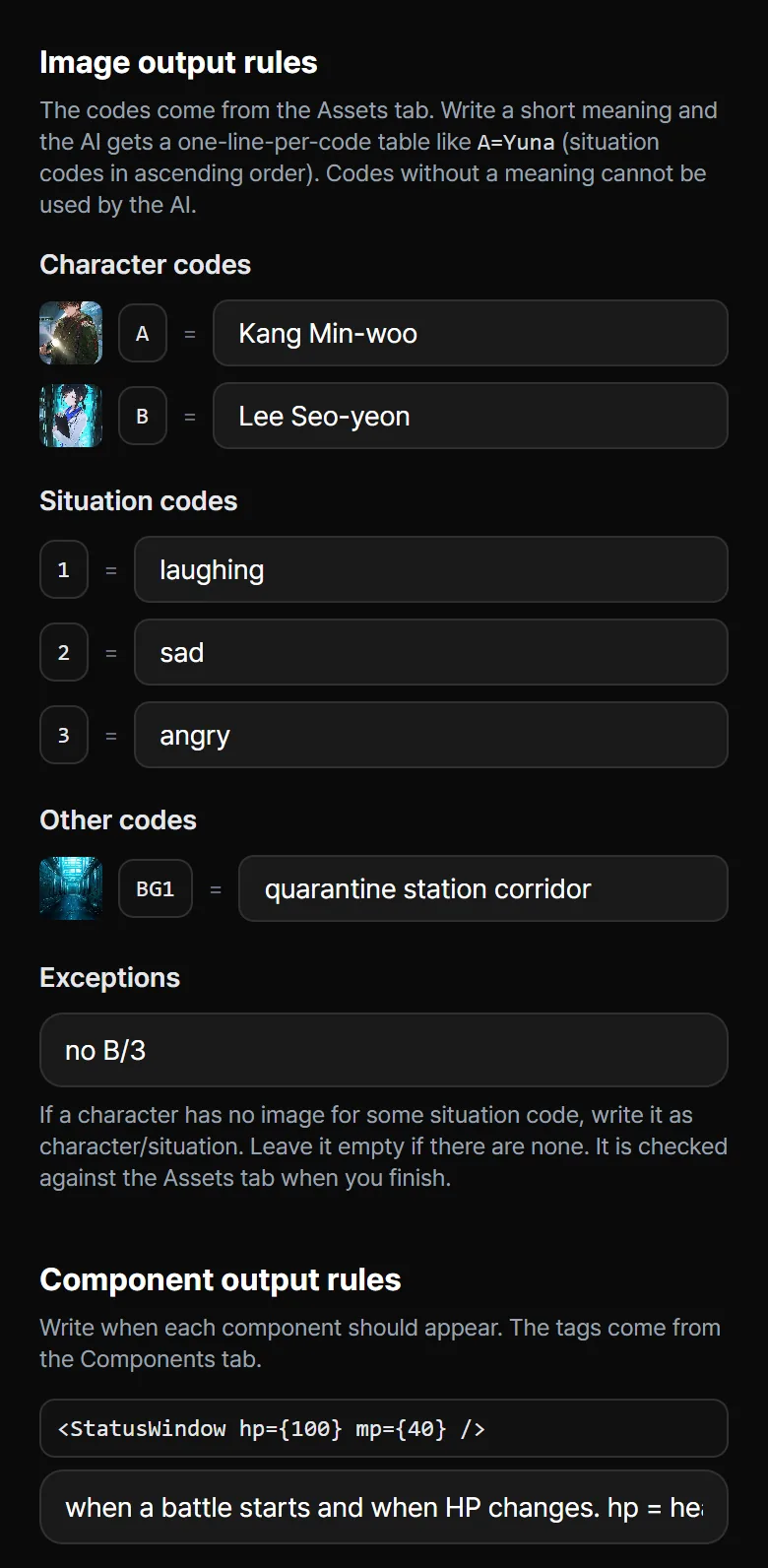
What you write is combined with rule sentences and a code table like the one below and sent to the AI. You can check it in the Assembled prompt at the bottom of the tab.
### Image output rules
Show the characters and backgrounds that actually appear in the scene as images, chosen from the code table below. At least one image per response — …
Format: ``; for other codes, ``. …
Character codes:
A=Kang Min-woo
B=Lee Seo-yeon
Situation codes:
1=laughing
2=sad
3=angry
Other codes:
BG1=quarantine station corridor
Exceptions: no B/3
Example: character code A + situation code 1 → ``
- For a character code, write only the name, briefly. In Basic, this meaning is also used as the character's name on the chat screen. Put descriptions like personality and relationships in the work info.
- Give situation codes the same meaning for every character. If
1is laughing for Min-woo but angry for Seo-yeon, the AI gets confused. Put an image of the same situation under the same code for every character. - Write missing combinations in Exceptions. If Seo-yeon has no angry image, write
No B/3so the AI doesn't call a path that doesn't exist.
Write it myself: write the rules yourself
With Write it myself, the rule sentences aren't added automatically. Write these three things in the prompt yourself:
- Which images exist: A list of codes and their meanings
- When to show them: Which code to use in which scene
- In what format: On its own line like
, and never invent a path that doesn't exist
The shortest version looks like this.
When Seo-yeon greets with a smile, output the image below on its own line.

Never invent an image path that is not registered.
You can also copy the whole set of rules that Basic builds. See See the whole Write it myself example in Write the prompt.
Put images in the opening
The opening is a first message you write ahead of time, so you choose where the images go yourself. Insert them with Insert asset image and check with the preview. The steps are in Write the opening.
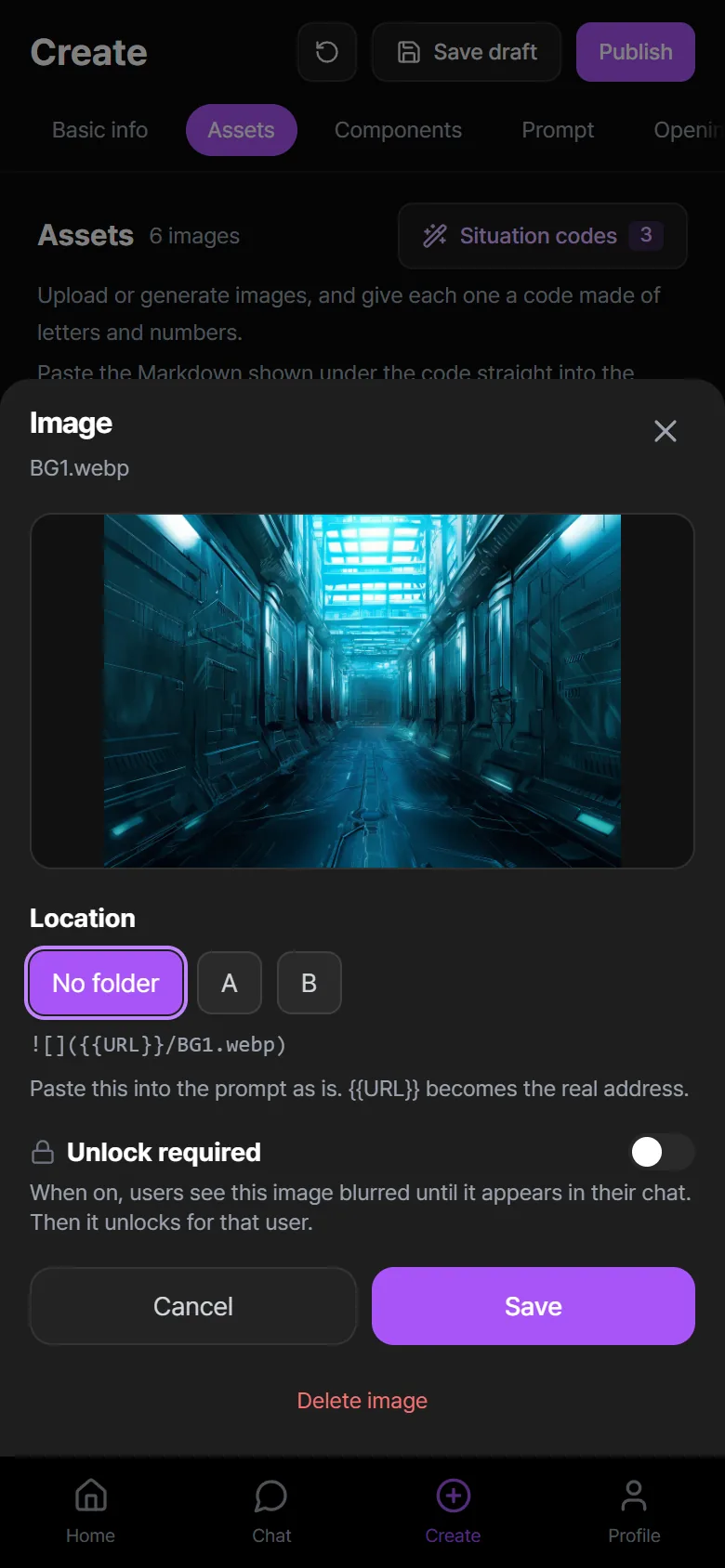
Lock it, then unlock it in chat: Unlock required
- In the Assets tab, select the thumbnail of the image to lock.
- Turn on Unlock required in the settings window.
- Select Save. It locks only once you save.
A locked image is blurred in the image list on the work page. When the image appears in a chat, it unlocks for that user only.
Use it when you want to save a special scene's image. The cover and the opening are visible from the start, so images used there stay visible even when locked.
If you get stuck
The AI doesn't put in images, or only sometimes
- Basic: Check that every code has a meaning and that the images are finished. The AI can't use a code that has no meaning.
- Write it myself: Check that you wrote the image output rules in the prompt.
- The AI's replies differ every time, so even with rules, one may occasionally be missed. Chat with it and refine the rule sentences.
Images don't show in chat, or look broken
The AI may have called a path that doesn't exist. Check that the codes in the Assets tab match the codes in the prompt, and that missing combinations are written in Exceptions. If you changed a folder name or a code, fix the paths in the prompt and the opening too.
A character's name looks wrong
In Basic, the meaning of a character code is used as the character's name on the chat screen. If you wrote a long description in the meaning, keep only the name and move the description to the work info.