Decorate your work page
What users see before choosing a work is the content of the Basic info tab. Fill in the cover, description, creator guide, and recommended models to finish the work page. None of this is sent to the AI.
This is the Expert mode guide. For Simple mode, see Assets and AI images and Optional.
Cover
You can add 1–10 covers. With several, the cover switches to the next one at the interval you set.
- Upload image: Upload an image you already have. JPG, PNG, WEBP, GIF, and HEIC files up to 5MB work.
- Pick from assets: Use an image you made in the Assets tab as a cover.
- Interval: The time before the next image. It changes by 0.5 s each time you select the button, and if you type it in, enter a value from 0.5 to 60 seconds.
Select the × on a thumbnail to remove that cover.
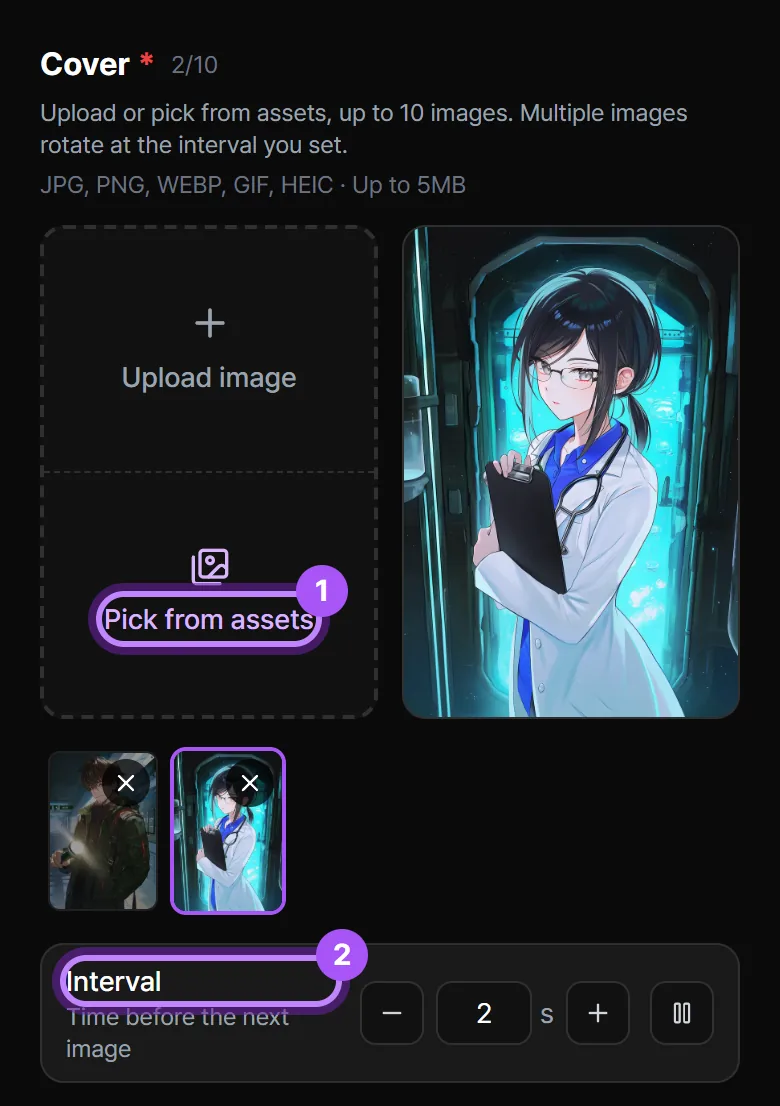
Select Pick from assets to see every finished image from the Assets tab. Choose the images you want as covers and select Add N to covers.
If the Assets tab has no images yet, the list is empty. Make them first in Prepare images.
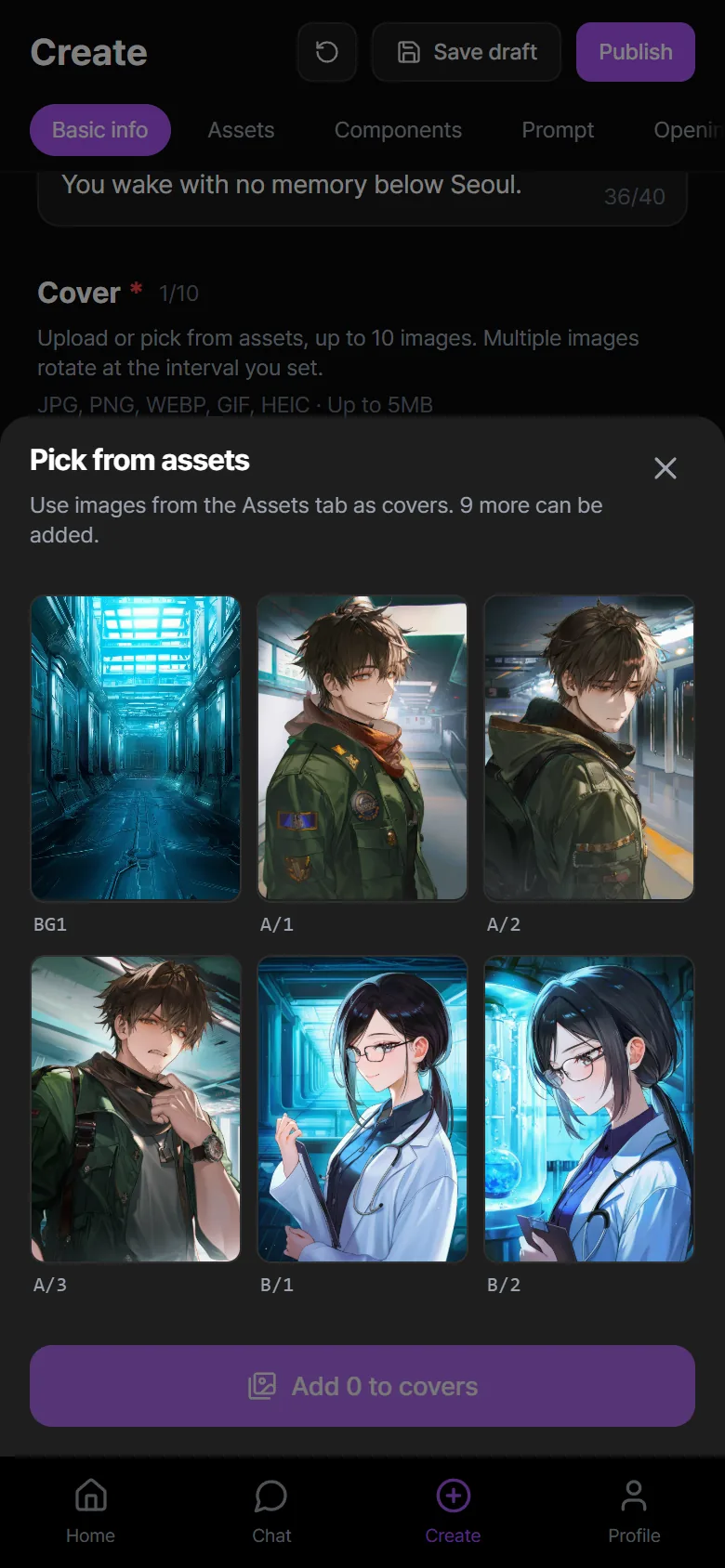
The cover is the first image people see in the work list. Put a vertical image that shows the main character's face clearly first. With several covers, you can also add one per character to introduce the cast.
Description
The Description is the body of the work page. It can be up to 50,000 characters, and you can mix plain text, Markdown, and HTML.
- Preview: Check how users will see it.
- Create with Google AI Studio: It's below the input field. Chat with Gemini to make an HTML intro page. See the steps below.
In the preview, Markdown headings, lists, and bold text appear formatted.
An introduction is easier to read in this order:
- A one- or two-sentence summary of the work
- The world and the starting situation
- The characters
- How to enjoy it (what to try)
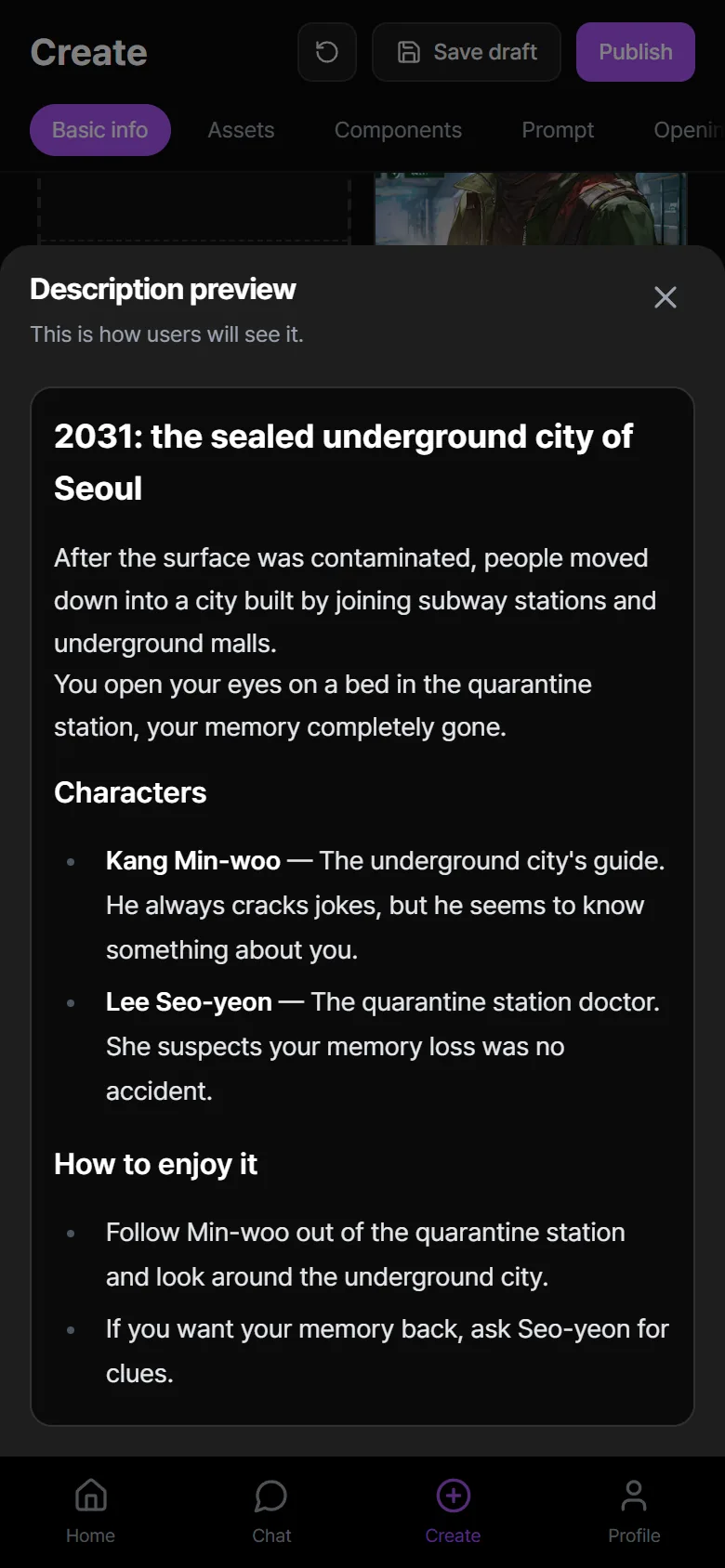
Create an intro page with AI Studio
Start from Create with Google AI Studio below the Description field. Chat with Gemini to make an HTML page with character art and an introduction to your work.
- Select Copy work info. Your work's settings, image addresses, and current description are copied together.
- Select Open Google AI Studio. If it's your first time, make your own workspace with Remix.
- Paste the work info into the input, add a line or two about what you want below it, and send.
- When it's done, check at the top that 프로필 HTML (Profile HTML) is selected, then select MYMI에 붙여넣을 코드 복사 (Copy code for MYMI).
- Paste it into the Description field in MYMI, check it with Preview, then select Save draft.
Select How to use to open step-by-step instructions. To see the actual AI Studio screens, go to Follow along in Google AI Studio.
You can use it within your Google account's free request allowance. No payment or API key is needed. To include art, the Assets tab needs finished images, and images marked as adult-only are not used.
HTML built from your work info contains the real addresses of your images. If you delete an image in the Assets tab, it also disappears from the intro page.
Creator guide
In the Creator guide, write how to enjoy the work or what you've added. It appears separately on the work page. One note can be up to 5,000 characters.
If you edit the current note, that note changes. Select Write new and the current note moves down to the list with a version number (V1, V2…) and a date, and you can write a new one.
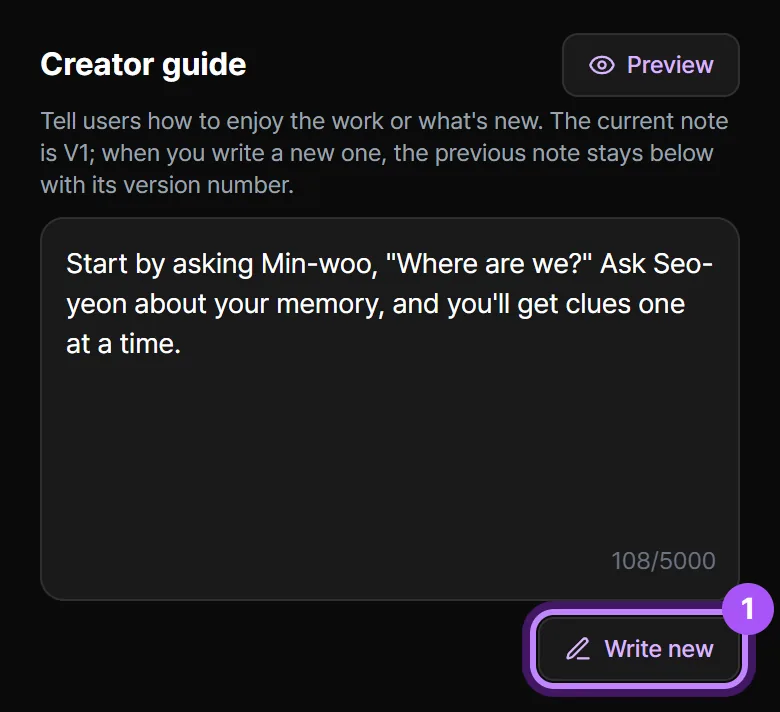
Example: Start by asking Min-woo, "Where are we?" Ask Seo-yeon about your memory, and you'll get clues one at a time.
Recommended models
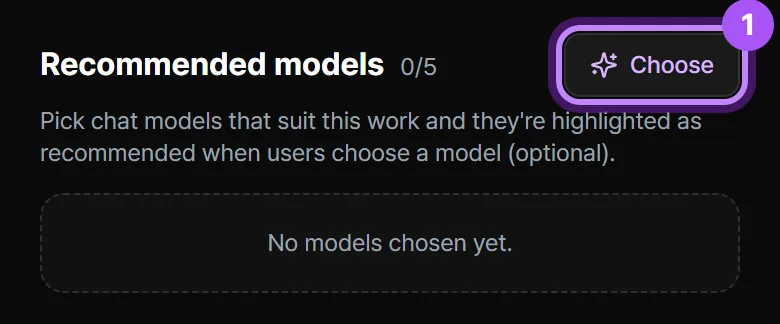
You can choose up to 5 chat models that suit the work. They're marked Recommended on the work page and in the chat model list, and users can still choose other models.
Select Choose to open the same model list as the chat screen.
Genres and hashtags
- Genres: Choose 1–2 from Romance, BL, GL, Fantasy, Wuxia, Sci-fi, Action & adventure, Slice of life, Drama, Comedy, Mystery & thriller, Horror, and Historical.
- Hashtags: Add at least 1. Briefly describe the work's subject or mood. Examples:
underground,amnesia,dystopia - Audience (For men, For women) is chosen separately in the Settings tab.
If you get stuck
The copied work info has no image addresses
Image addresses are included only when the Assets tab has finished images. Upload or generate an image, then select Copy work info again.
I pasted the HTML, but the preview isn't what I expected
In the profile HTML tab, select MYMI에 붙여넣을 코드 복사 (Copy code for MYMI) and paste the complete result again. If the layout is still broken, ask Gemini to fix it.
How many covers can I add?
Up to 10. To add more, remove one first.