Write the prompt
What you write in the Prompt tab is the setting the AI reads as written every time it replies in a chat. The world, characters, hidden settings, progression rules, and when to use images and components all go here.
This is the Expert mode guide. In Simple mode there's no Prompt tab, and you fill in the fields of the Basic Info step. See Write the settings and the intro.
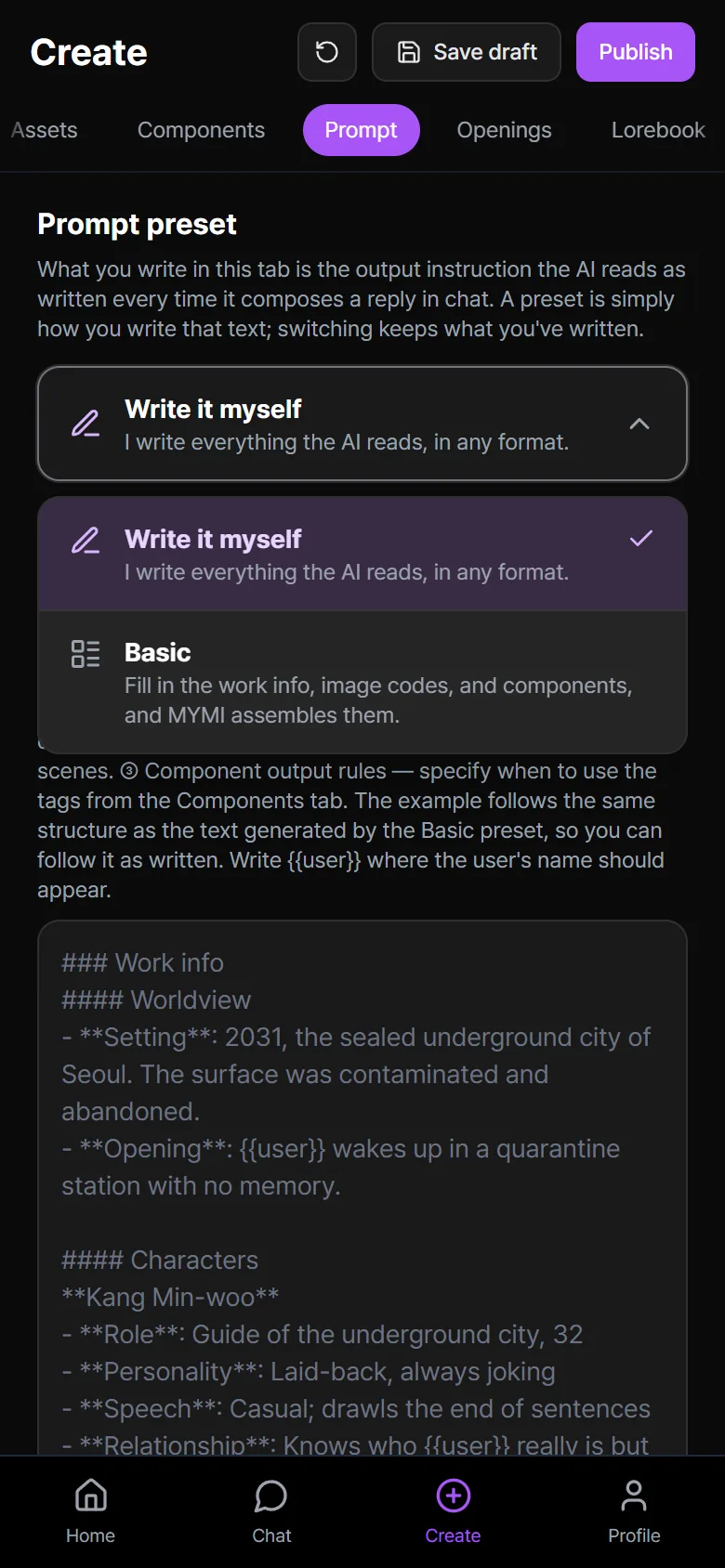
Two ways: Basic and Write it myself
Select Prompt preset at the top of the tab to choose a way. Write it myself is selected at first.
- Basic: Fill in the work info, image codes, and components, and MYMI assembles them.
- Write it myself: You write everything the AI reads, in any format.
| Basic | Write it myself | |
|---|---|---|
| Where you write | The Work info, Image output rules, Exceptions, and Component output rules fields | One Prompt field |
| Image and component rules | Write only what each code means and when it appears, and the rule sentences are added automatically | You write the output format and when to use them yourself |
| Length | 10,000 characters in total across what you wrote. Headings and codes added automatically aren't counted | 10,000 characters |
| Good for | First-time creators, works that use many images | People with a clear structure in mind |
After you switch, what you wrote is still on the screen. But only the text of the way you chose is saved. It isn't a feature for keeping the text of both ways side by side.
Write with Basic
Work info
In Work info, write the worldview → characters → hidden settings → progression rules under #### subheadings. Write each item as - **Item**: value, and put a character's items under their name line.
To refer to the user, write {{user}}. While the field is empty, a gray example shows, so follow its shape.
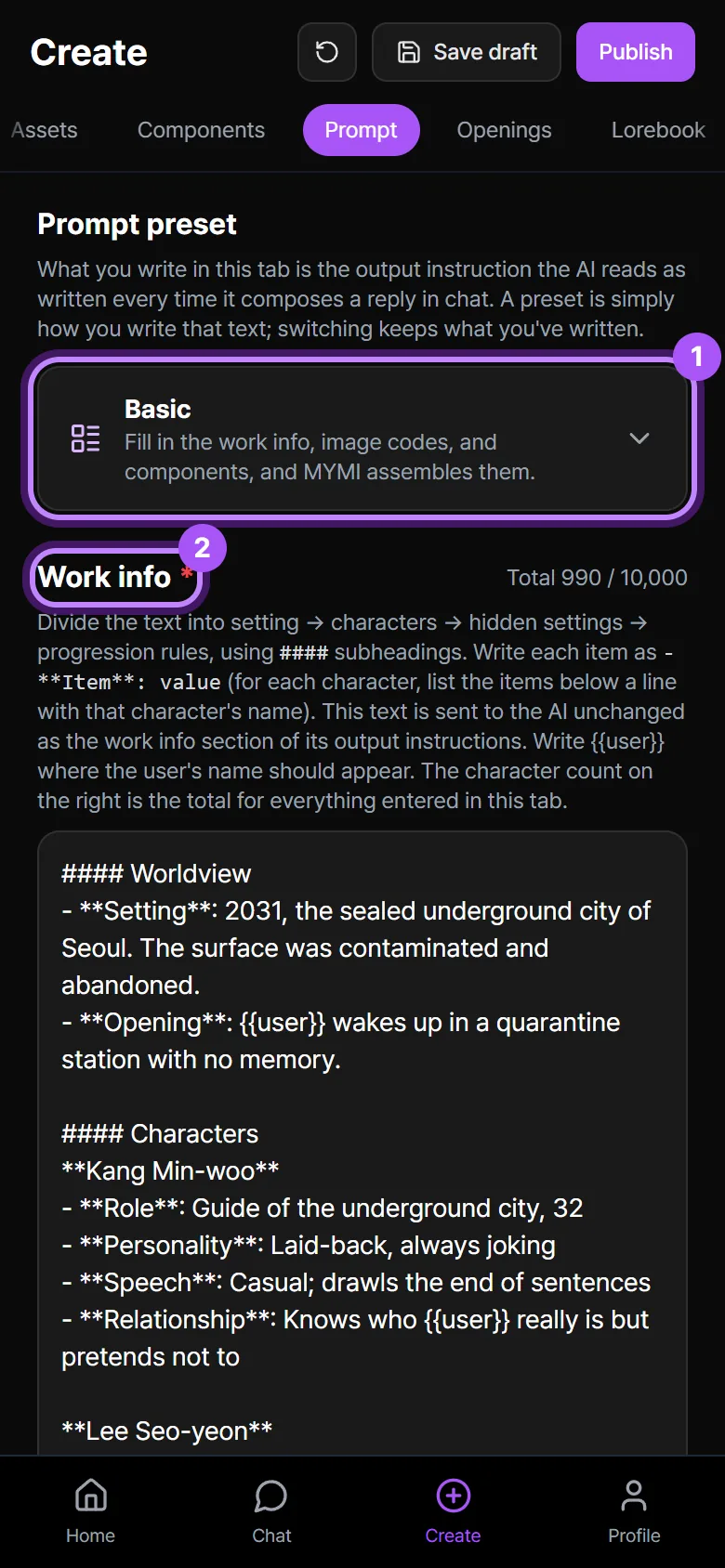
The example work's work info is in Create your first work.
Image output rules and exceptions
Once you add images in the Assets tab and set their codes, a code table appears. Write a short meaning for each code.
- Character codes: The character folder. Say who it is. Example:
A= Kang Min-woo - Situation codes: The codes of the images inside a folder. Say when it appears. Example:
1= laughing - Other codes: Images outside a folder. Say what it is. Example:
BG1= quarantine station corridor - Exceptions: If a character lacks some situation, write it like
No B/3.
The AI can't use a code that has no meaning. The details are in Show images in chat.
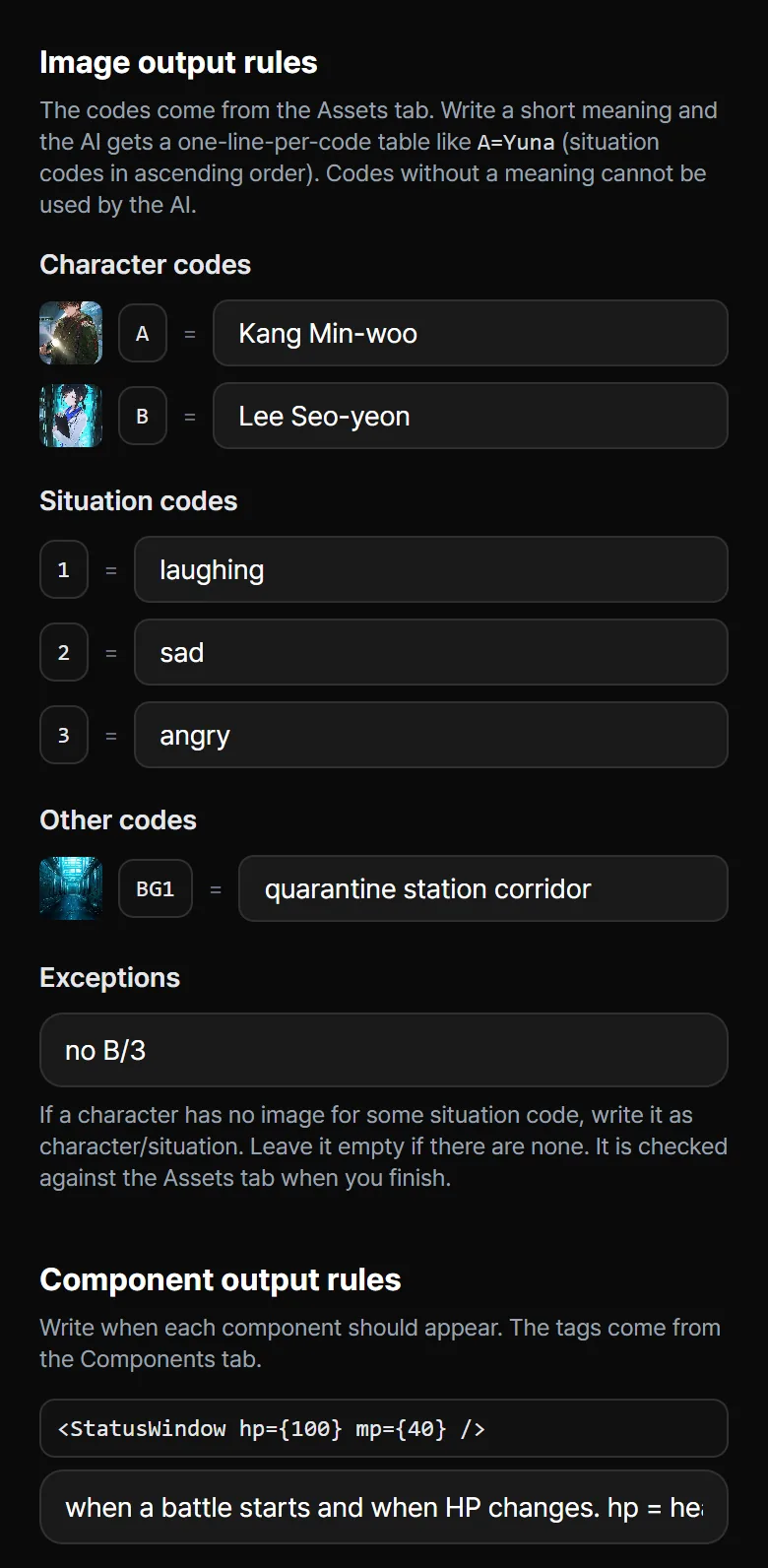
Component output rules
When you add a component in the Components tab, its call tag appears here. For each component, write when it appears. Example: When a battle starts and when HP changes. hp = health, mp = mana. The details are in Add components.
Assembled prompt
Check the combined result of the fields in the Assembled prompt at the bottom of the tab. The AI reads this text as written. While you're still making the work, codes without images yet may show in the code table, but only codes that have an image go into actual chats.
Write with Write it myself
You write everything in the single Prompt field. Don't leave out these three:
- Work info: The world, characters, hidden settings, and progression rules
- Image output rules: Which image goes in which scene, based on the folders and codes in the Assets tab
- Component output rules: When to call the tags from the Components tab
The example that shows while the field is empty has the same structure as the text Basic builds. You can follow it as is.
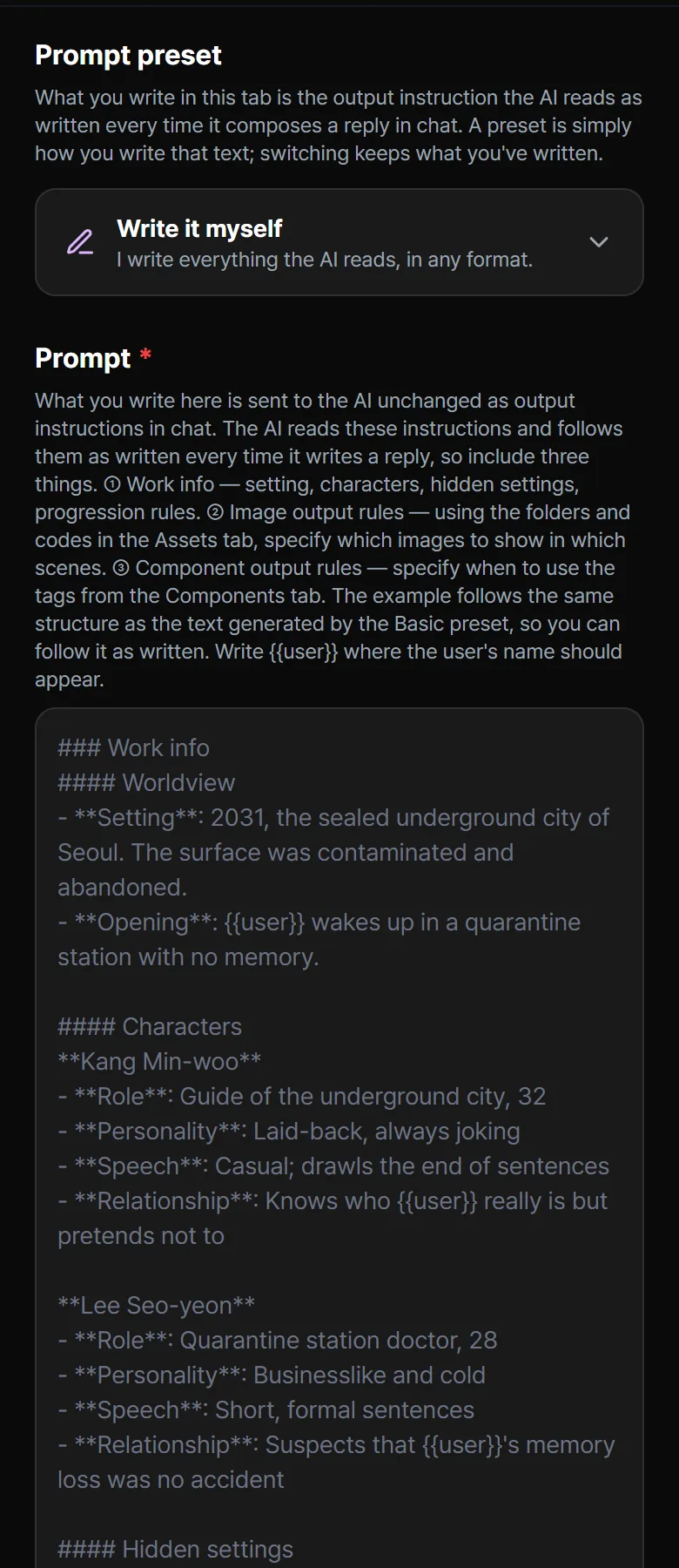
With Write it myself, adding assets and components doesn't add rule sentences automatically. If you don't write them in the prompt, the AI can't know when to show an image or call a tag.
{{char}} isn't replaced{{char}} in the prompt isn't replaced with the character's name automatically. Write the character's name yourself. Write the user as {{user}}.
See the whole Write it myself example
This is the same text as the example on the creation screen. The code table and the component tag are written to fit the example work's assets and component.
### Work info
#### Worldview
- **Setting**: 2031, the sealed underground city of Seoul. The surface was contaminated and abandoned.
- **Opening**: {{user}} wakes up in a quarantine station with no memory.
#### Characters
**Kang Min-woo**
- **Role**: Guide of the underground city, 32
- **Personality**: Laid-back, always joking
- **Speech**: Casual; drawls the end of sentences
- **Relationship**: Knows who {{user}} really is but pretends not to
**Lee Seo-yeon**
- **Role**: Quarantine station doctor, 28
- **Personality**: Businesslike and cold
- **Speech**: Short, formal sentences
- **Relationship**: Suspects that {{user}}'s memory loss was no accident
#### Hidden settings
- Min-woo was ordered to watch {{user}}. He never reveals this to the user first.
- {{user}}'s memories were erased by the Bureau.
#### Progression rules
- In the first conversation, Min-woo guides {{user}} out of the quarantine station.
- When {{user}} tries to recover their memories, Seo-yeon gives one clue at a time.
### Image output rules
Show the characters and backgrounds that actually appear in the scene as images, chosen from the code table below. At least one image per response — put the image of the scene's central character on its own line right before that character's first line or action, and when the focus moves to another character, add that character's image on a new line. When the expression or situation changes, change the situation code.
Format: ``; for other codes, ``. Use only the codes in the table below exactly as written, never invent codes or paths that are not in the table, and never use the combinations listed under exceptions. Do not insert images of characters who are not in the scene.
Character codes:
A=Kang Min-woo
B=Lee Seo-yeon
Situation codes:
1=laughing
2=sad
3=angry
Other codes:
BG1=quarantine station corridor
Exceptions: no B/3
Example: character code A + situation code 1 → ``
### Component output rules
At the moment a rule applies, output the tag below on its own line, exactly as written.
- `<StatusWindow hp={value} mp={value} />`: when a battle starts and when HP changes. hp = health, mp = mana.
Tips for writing well
These aren't rules MYMI guarantees, just methods that help as you make a work. After you publish, chat with it yourself using View work on the complete screen and keep improving it. If you want to test it before other users see it, set Visibility in Settings to Private and publish.
- Separate information from instructions. Write the world, characters, and hidden settings as facts, and the progression rules as actions like "Min-woo does this", and nothing gets mixed up.
- Fill in the same items for every character. If you write role, personality, speech, and relationship for everyone, their voices don't blur together even with many characters.
- Show speech with examples. Point out traits like "Casual; drawls the end of sentences", or write a sample line.
- Give hidden settings a condition for revealing them. For example, "Never reveal to the user first" or "Confess if asked three or more times".
- Move settings that rarely come up to the lorebook. Settings you need only when a name comes up, like a specific place or organization, belong in the lorebook, which keeps the prompt short.
- If you need sample dialogue, write it inside the work info. There's no separate field for sample conversations.
If you get stuck
It says "Some character codes have no meaning."
Some codes in the Image output rules of Basic have no meaning written. Fill in all the Character codes, Situation codes, and Other codes fields. If you won't use an image, delete it in the Assets tab.
It says "The prompt fields exceed 10,000 characters in total."
Basic adds up everything you wrote in the work info, code meanings, exceptions, and component rules. Try moving rarely used settings to the lorebook.
The AI doesn't put in images
With Write it myself, check that you wrote the Image output rules in the prompt. With Basic, check that every code has a meaning and that the images in the Assets tab are finished. Even so, one can occasionally be missed. The AI's replies differ every time.