Publish and edit
Once your work is complete, a work set to public goes through review before other users see it. In Simple mode you select Done on the last step, and in Expert mode you select Publish in the top bar, to make the work. You can edit your works any time from Profile → Content Management.
From Publish to public
| Stage | What happens |
|---|---|
| Publish | Checks the required items and saves the work. If something is missing, it shows a message. In Expert mode, it also takes you to that tab. |
| Review | Checks safety rules and quality. We notify you when it's done. |
| Public | Other users can find the work and chat with it. |
You can chat with your own work right away, even during review. How long review takes can vary by work. Adults only works are shown only to users who have completed age confirmation.
The complete screen shows different guidance depending on the state of the work.
- A new work set to Public: It's shown as Under Review, and becomes public to other users when the review is done. (The complete screen in Create your first work: Simple mode · Expert mode)
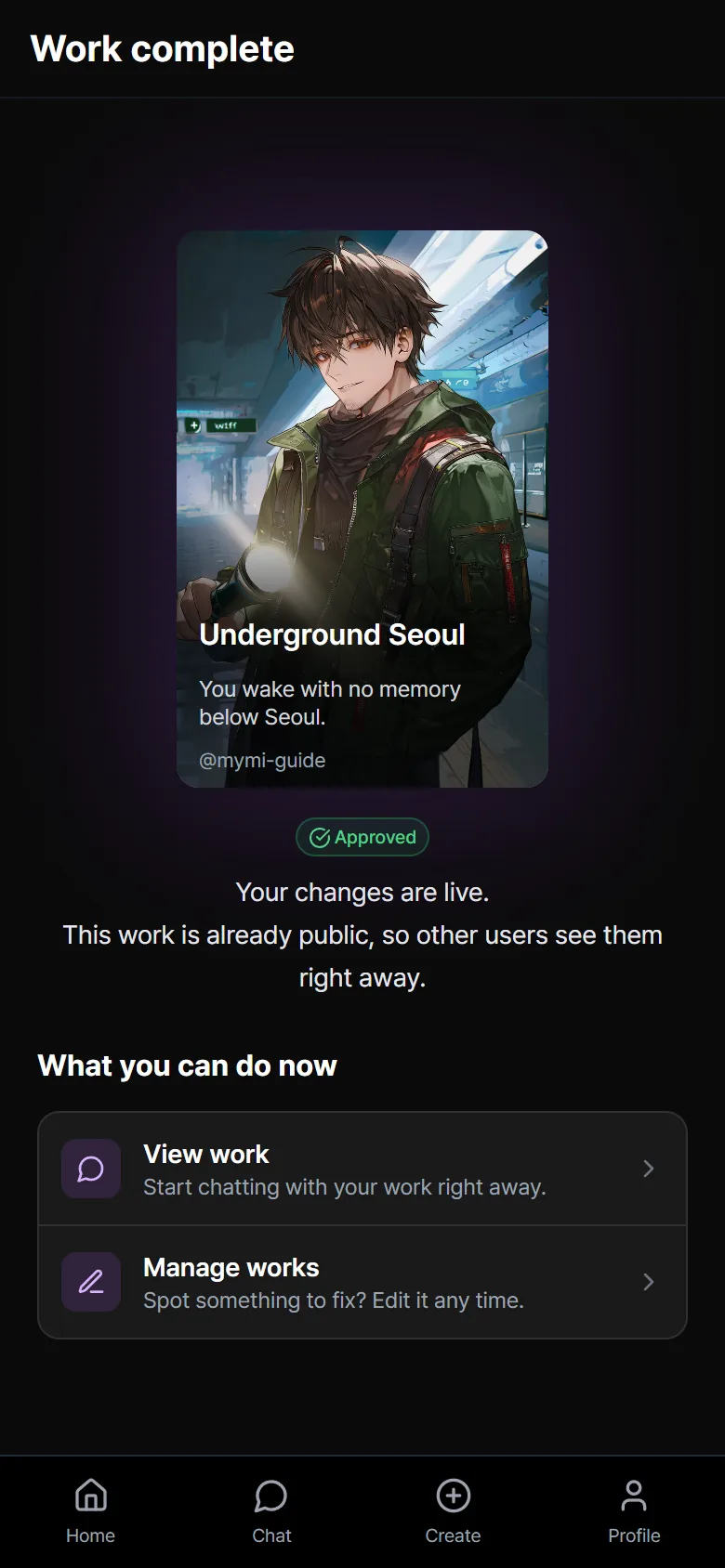
- A work set to Private: Only you can see it. To make it public, change the visibility in Content Management. Review starts from then.
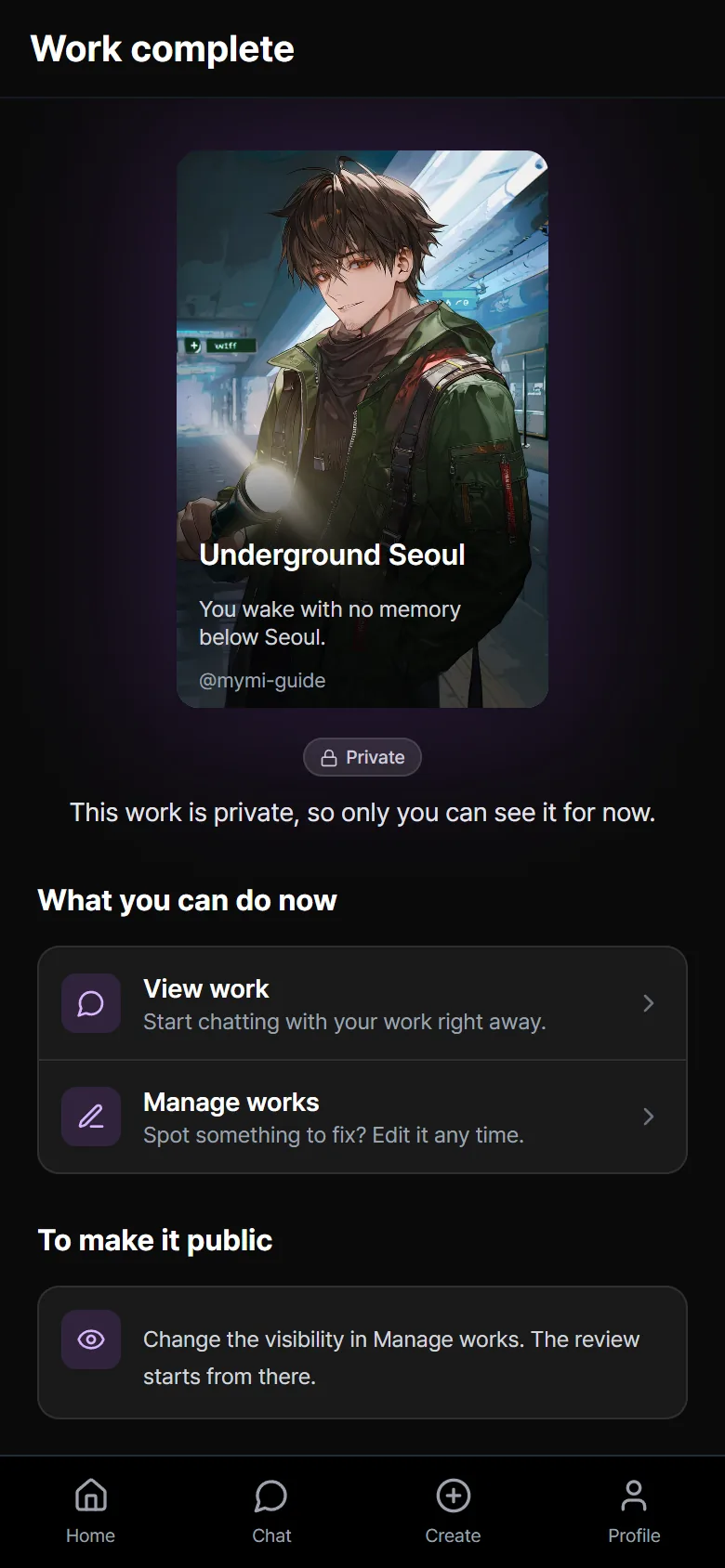
- If you edit a work that is already Approved: your changes show to other users right away. It doesn't go through review again every time you edit.
- However, if you change Content rating from Adults only to All ages, it goes through review again.
Content Management
The works you made are gathered in Profile → Content Management.
- Edit: Opens the work in the creation screen of the mode it was made in.
- ⋮: Opens a menu. It has Delete, and for a rejected work, Request Re-review.
- A public work shows Under Review, Approved, or Rejected.
A draft you haven't published yet shows as In progress. Select Profile to open the work page.
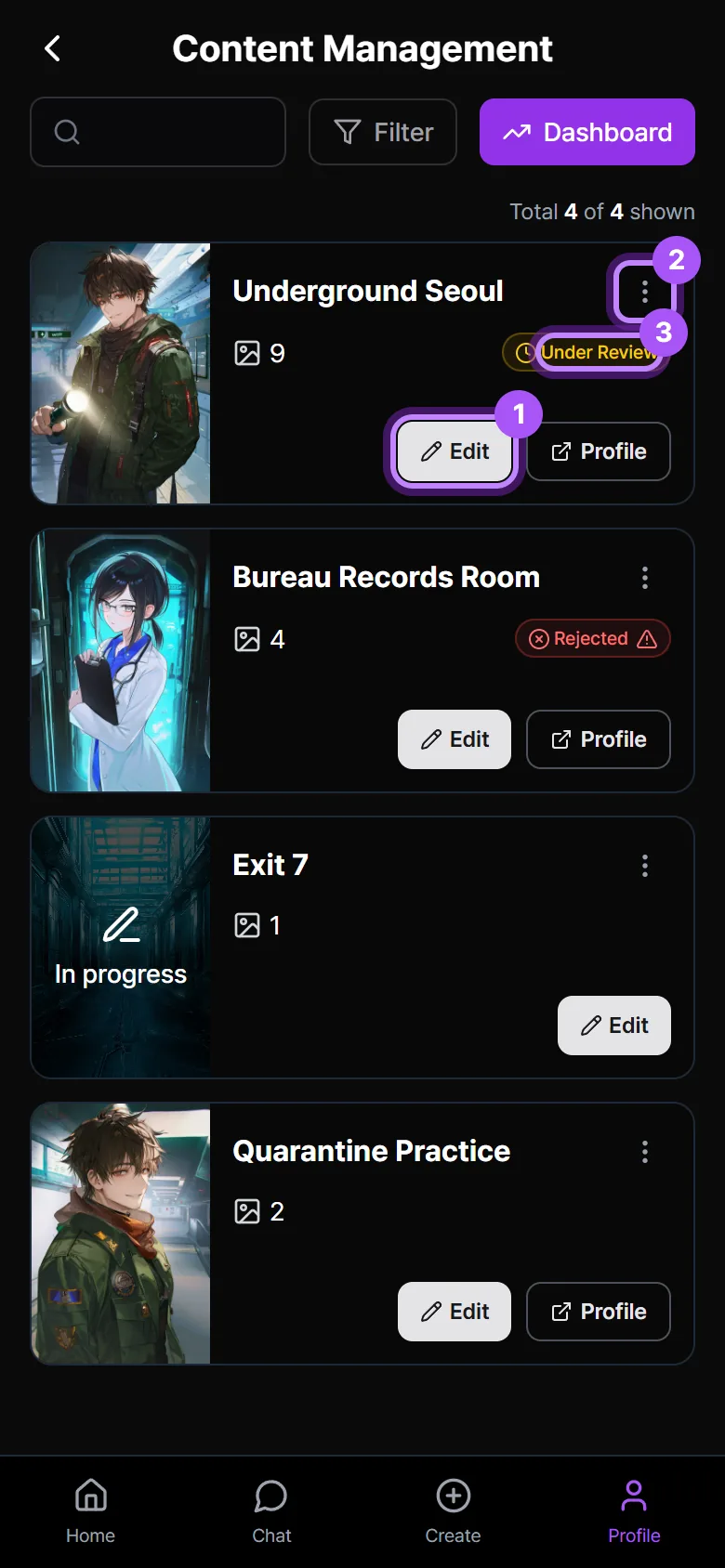
Use the search field and Filter (sort, visibility, approval status) at the top to find works. In Dashboard, see how a work is doing, such as message counts and Leaves earned.
Edit a published work
When you select Edit in Content Management, the work opens in the mode it was made in. How you edit differs by mode.
Expert mode works
- Select Edit in Content Management.
- Make your changes.
- Select Apply changes in the top bar.
A published work has no Save draft. So that a half-edited state is never made public, text and settings take effect only when you select Apply changes.
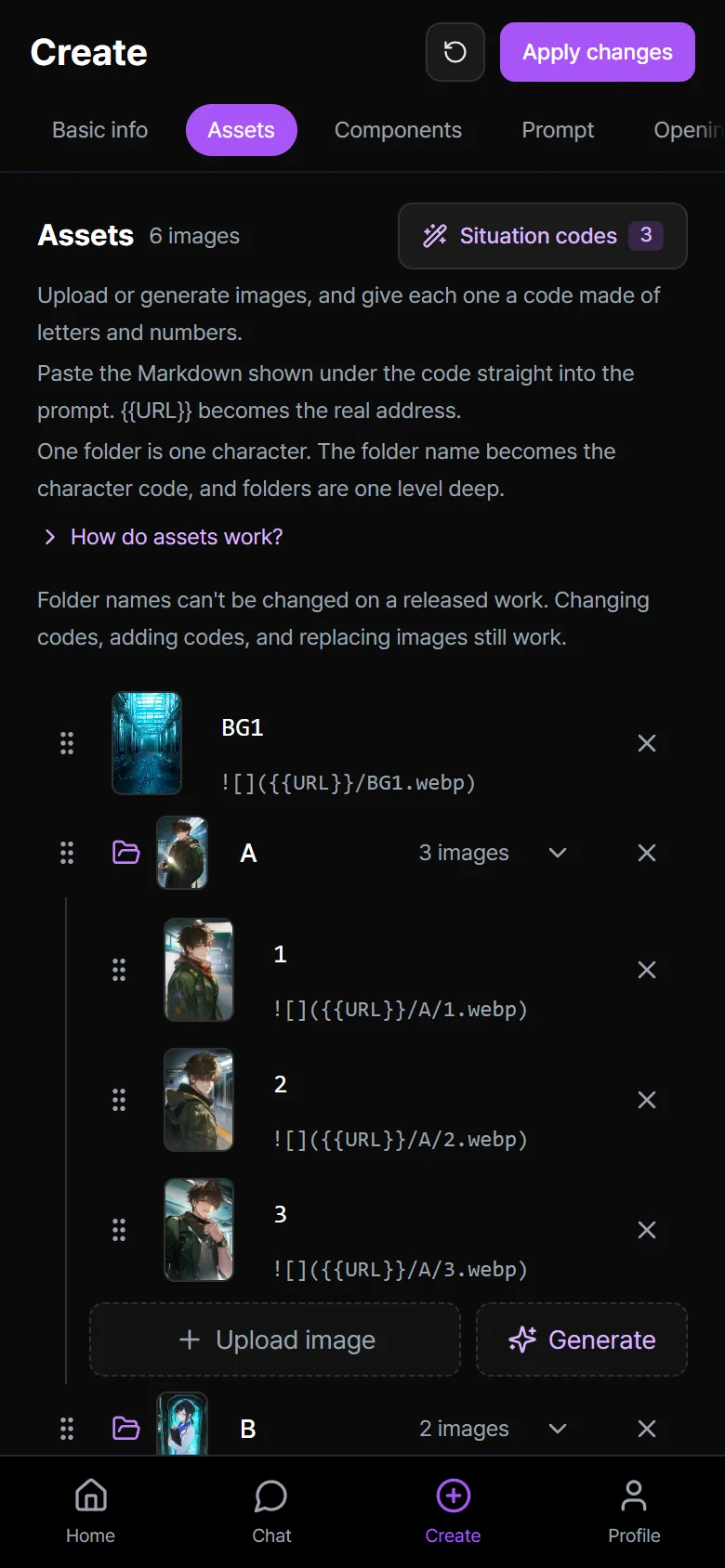
Adding, replacing, or deleting images in the Assets tab, and changing codes, reach the work right away, without waiting for Apply changes.
- If you change a code or delete an image, the image also disappears from existing chats that used it. To swap an image, keep the code and replace only the image.
- On a published work, you can't change folder names (character codes).
- You can't move an image to another character folder. You can move it out of the folder.
Edits to a public work aren't saved automatically when you switch tabs. After you edit, select Apply changes before you close the screen.
Simple mode works
Simple mode has neither Save draft nor Apply changes. Each time you select the next button or go forward by selecting a tab, your edits are saved to the work, and if the work is already approved, other users see them right away. Uploading and deleting images in Assets also takes effect right away. The details are in Edit a work.
Ask for a re-review of a rejected work
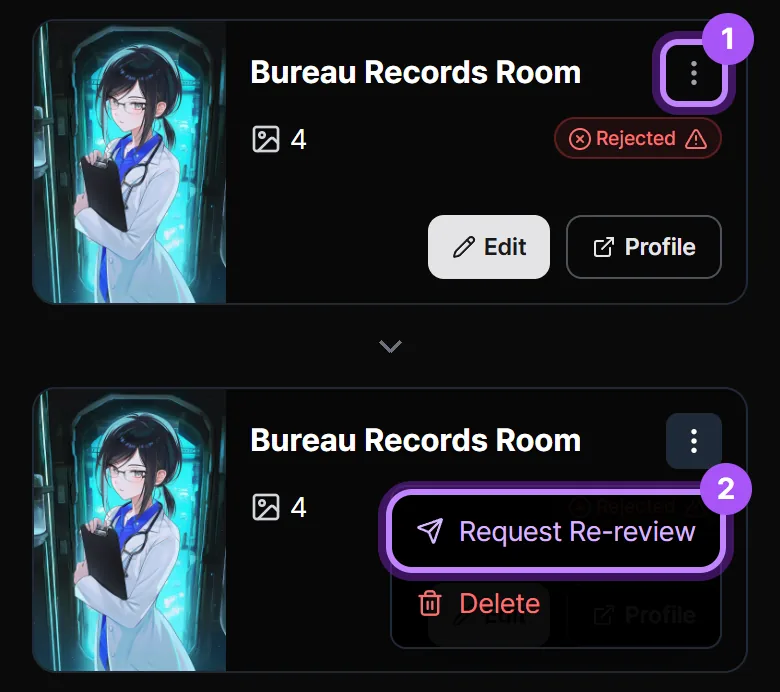
If a review rejects your work, its card shows Rejected.
- Select the ⋮ button on that work. When the menu opens, it covers the Rejected label.
- Select Request Re-review.
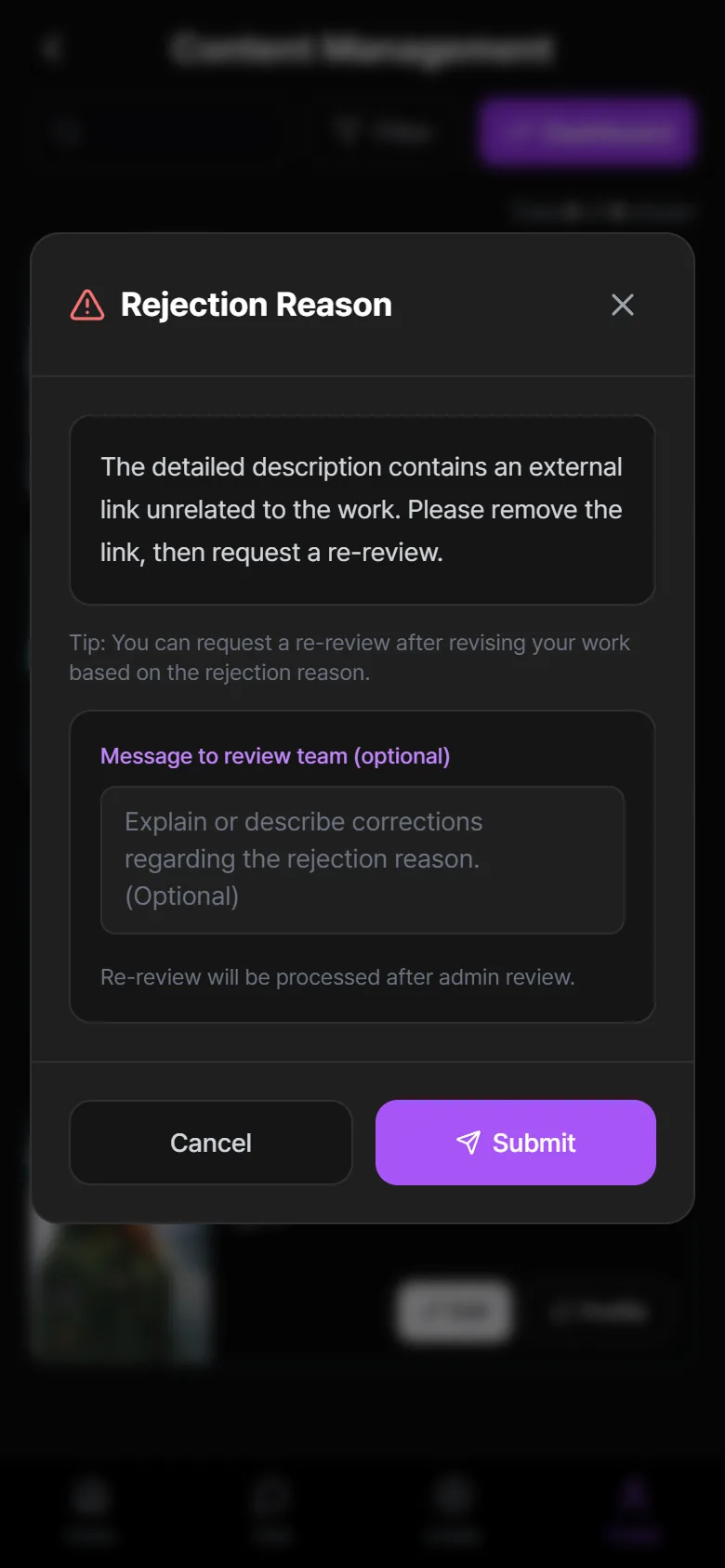
- Read the Rejection Reason.
- Fix the work to match the reason. For an Expert mode work, select Apply changes. For a Simple mode work, select the next button to save. The steps are the same as in Edit a published work.
- Select ⋮ → Request Re-review again.
- If you like, write what you changed in the message field and send the request. On the web, select Request Re-review in the Rejection Reason window and then Submit. In the app, select Request Re-review at the bottom of the window. An administrator reviews the request and handles it.
Make a private work public
- Select Edit in Content Management.
- In Settings → Visibility, choose Public.
- For an Expert mode work, select Apply changes. For a Simple mode work, select the next button to save. Review starts then. In Simple mode you can also save with Done on the last step.
Delete a work
In Content Management, select ⋮ → Delete on the work, and select Delete once more in the confirmation window to delete it. A deleted work disappears from Content Management and from the work lists.
There is no menu for bringing a deleted work back. If you only want to take it down for a while, open it with Edit, change Settings → Visibility to Private, and for an Expert mode work select Apply changes, or for a Simple mode work select the next button to save.
The ↺ (Reset creation content) in the creation screen only clears the screen you're entering. Your saved draft stays in Content Management.
Recommended personas
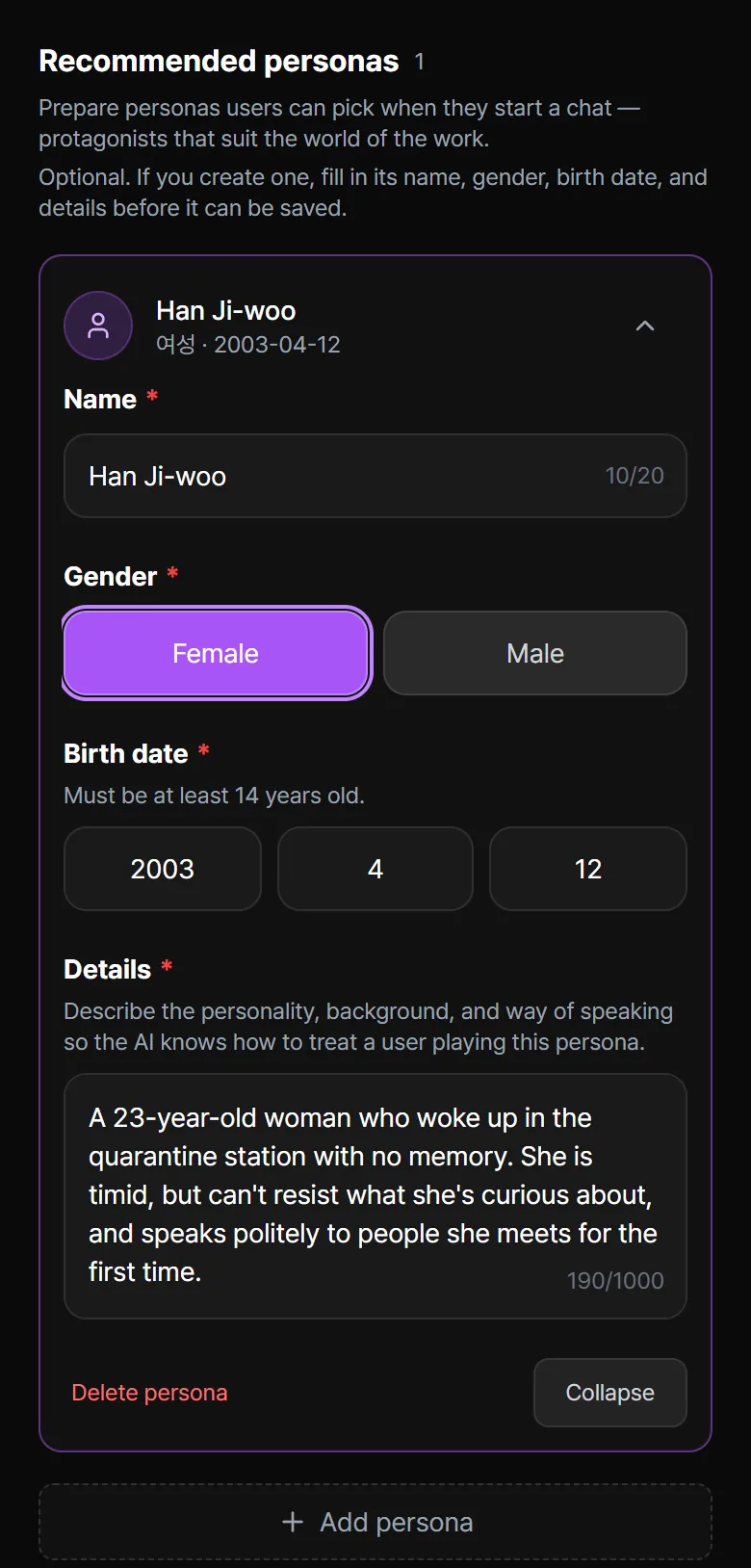
Recommended personas let you prepare personas that users can pick when they start a chat. Use them to suggest a protagonist that suits the world of your work. You don't have to make any. In Expert mode it's at the bottom of the Settings tab, and in Simple mode it's in the Optional step.
If you make one, you need to fill in all four fields to finish the work.
- Name: Up to 20 characters
- Gender: Female or Male
- Birth date: Must be at least 14 years old
- Details: Describe the personality, background, and way of speaking so the AI knows how to treat a user playing this persona. Up to 1,000 characters
If you get stuck
I selected Apply changes, but other people don't see it right away
If the work is still under review, it becomes public after the review is done. If it's already approved, the change takes effect as soon as you apply it. Try refreshing the work page.
The Save draft button disappeared from my public work
A work you've already published is saved with one button, Apply changes. It's so that half-finished edits never go public.
I have the same work twice in Content Management
If you reset the creation screen and started over, the draft you made first stays as In progress. Open it with Edit to check, and delete drafts you don't need with ⋮ → Delete.