Make shortcuts
A shortcut sends an instruction you wrote in advance to the AI along with a user's message when they pick it with / in the chat input. Use it to add moments unique to your story, like a diary, a phone, or a social feed. Users see only the name and description, not the instruction.
This is the Expert mode guide. For Simple mode, see Lorebook, shortcuts, components, and optional items. What users see is the same in both modes.
How it differs from the lorebook
| Lorebook | Shortcuts | |
|---|---|---|
| When it's sent | Automatically, when a keyword comes up in a chat | Only when a user picks it with / |
| What you write | Places, organizations, objects, and past events that come up now and then | Directions for that one reply |
| How much | 400 characters per entry, up to 100 entries | 400 characters per instruction, up to 10 shortcuts |
Make a shortcut
- Select Add shortcut. You can make up to 10 per work.
- Fill in the Name, Description, and Instruction.
- Select Collapse so only
/nameand the description show in the list. To delete a shortcut, select Delete shortcut on the open card, then select Delete when "Delete this shortcut?" appears.
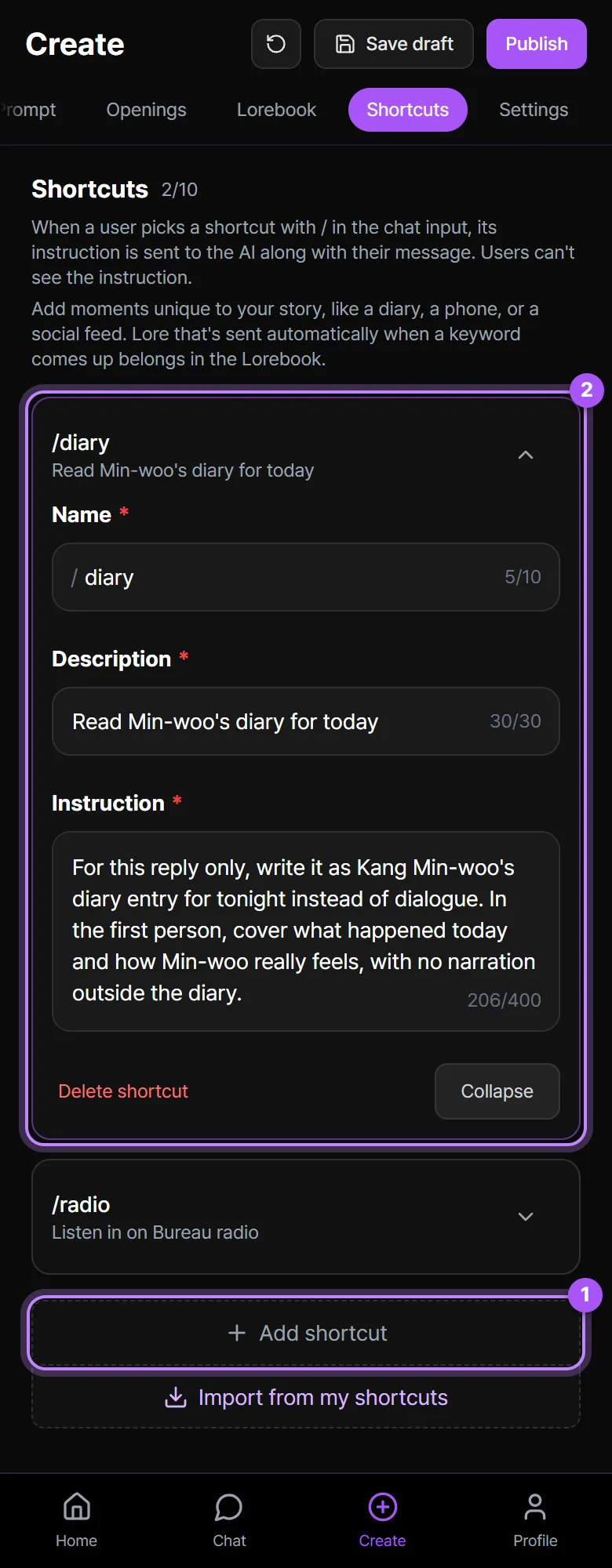
- Name: The name users see in the shortcut list above the chat input, like
/diary. Up to 10 characters, and it can't contain/or a line break. - Description: A short description shown with the name in the list. Up to 30 characters.
- Instruction: The instruction sent to the AI along with the message when a user picks this shortcut. Up to 400 characters.
Publish won't go through until all three fields are filled in. If you've made your own shortcuts in chats, use Import from my shortcuts to pick several and add them. You can't pick one with the same name as a shortcut already in this work. They're added as copies, so edit them in the work, separately from your own shortcuts.
These are the example work's shortcuts.
| Name | Description | Instruction |
|---|---|---|
| diary | Read Min-woo's diary for today | For this reply only, write it as Kang Min-woo's diary entry for tonight instead of dialogue. In the first person, cover what happened today and how Min-woo really feels, with no narration outside the diary. |
| radio | Listen in on Bureau radio | For this reply only, write nothing but the Bureau's radio traffic: three or four short lines exchanged near the quarantine station and Exit 7. Leave Min-woo and Seo-yeon out of it. |
What users see
- When users select the Shortcuts button in the chat input or type
/, a list appears above the input. Your work's shortcuts are in the Creator tab. - When a user picks a shortcut and sends a message, the instruction is sent for that one reply only. If they select Regenerate, the same instruction is used again. It isn't added to any later messages.
- Only the shortcut's name, like
/diary, appears at the top of the user's message bubble. - Users who aren't logged in can't use shortcuts. Users chatting in another language see a shortcut once it's translated into their language.
Tips for writing instructions
- Say what to change in that reply. Writing it like "For this reply only, write it as …" makes the task clear to the AI.
- Set the format and length. Spelling out something like one diary entry or three or four lines of radio chatter makes replies more consistent.
- Write character names yourself. Example: "Kang Min-woo"
- Keep settings that are always needed in the prompt. An instruction only applies to the one reply after a user picks that shortcut.
If you get stuck
It says "Some shortcuts have no name."
One of the shortcuts you made has an empty name. If a description or instruction is empty, you see "Some shortcuts have no description." or "Some shortcuts have no instruction." Fill in the empty field, or delete a shortcut you won't use with Delete shortcut.
I can't add more shortcuts
You can make up to 10 per work. Delete shortcuts you don't use, or merge similar ones into one.
My work's shortcuts don't show up in chats
Your work's shortcuts are in the Creator tab of the shortcut list. If you're not logged in, there's no Shortcuts button. When the app is in another language, they show up once they're translated into it.