Learn about Simple mode
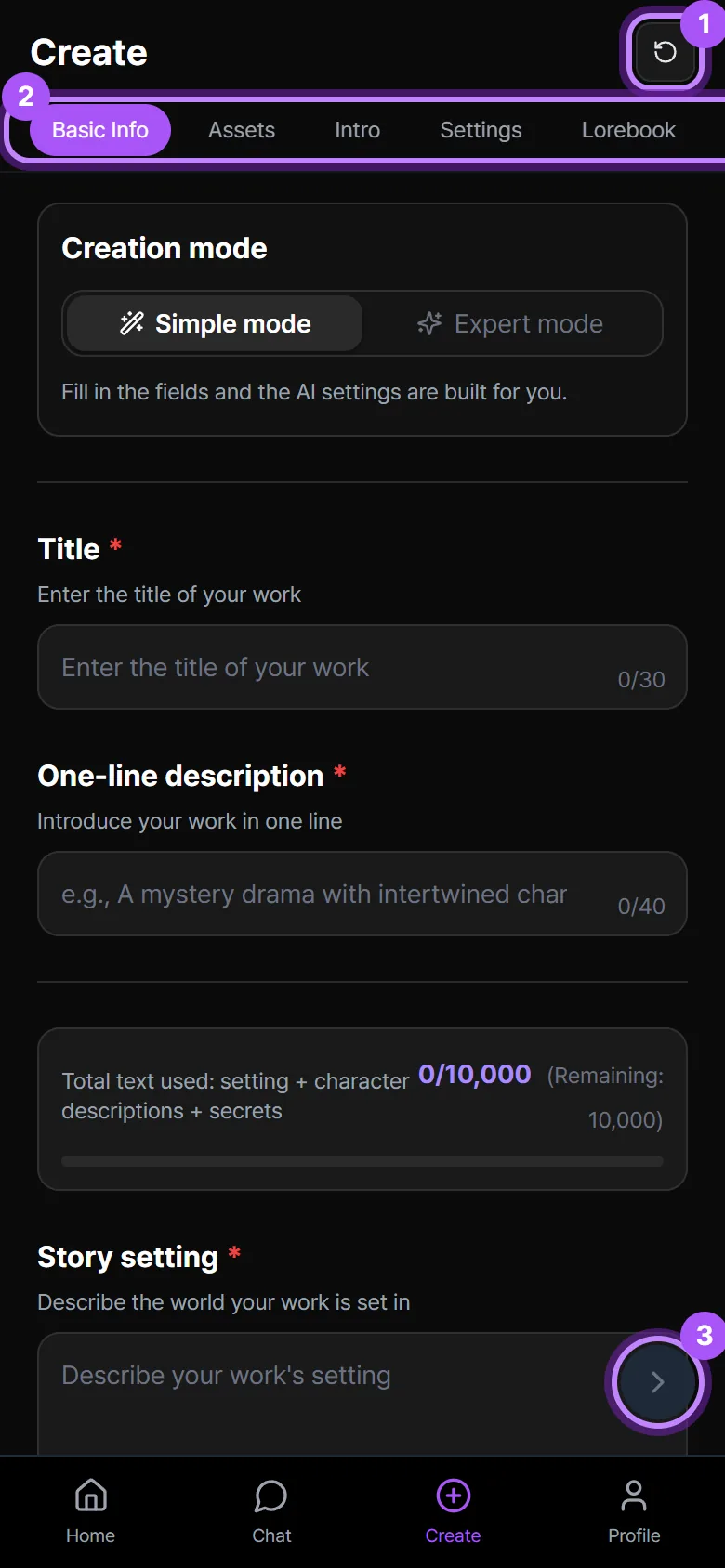
Simple mode is the way you fill in the fields and MYMI gathers what you wrote into the AI settings. You move through the seven steps one at a time with the > (Next) button at the bottom right. If this is your first work, start with Create your first work in Simple mode.
Open in Simple mode
- A new work starts in Simple mode. Just select Create in the bottom menu. If it's open in another mode, select Simple mode in Creation mode at the top of the Basic Info tab. (Before you start)
- When you select Edit on a work made in Simple mode from Profile → Content Management, it opens in Simple mode.
The screen and the seven steps
- ↺ (Reset creation content): Clears the screen you're entering and starts over. Drafts you already saved stay in Content Management.
- Tab row: Basic Info · Assets · Intro · Settings · Lorebook · Components · Optional. The current step is shown in purple.
- > (Next) button: Checks this step, saves it, and goes to the next step. On the last step it turns into Done.
| Step | What you write | Required? |
|---|---|---|
| Basic Info | Title, one-line description, story setting, characters, secrets | Only the secret is optional |
| Assets | Images to show in chats, a situation description for each, and a profile image | Required |
| Intro | The first message the AI sends when a chat starts | Required |
| Settings | Management items such as genres, hashtags, visibility, and publishing scope | Required |
| Lorebook | Settings sent to the AI only when certain words come up | Optional |
| Components | UI that pops up inside chats, like status windows and choices | Optional |
| Optional | Description, recommended personas, Creator's Note | Optional |
You can complete a work with Lorebook, Components, and Optional left empty. How to write each step is in Write the settings and the intro, Assets and AI images, and Lorebook, components, and optional items.
What the AI reads and what users see
In Simple mode, it matters which fields the AI reads and which ones users see.
| Field | When the AI chats | Where users see it |
|---|---|---|
| Title | Reads it | Work card, work page |
| One-line description | Doesn't read it | Work card |
| Story setting | Reads it | Work page (when you haven't written a description) |
| Character names and descriptions | Reads them | Work page (when you haven't written a description) |
| Secrets | Reads it | Not shown |
| An asset's situation description | Reads it (when Image Output Instructions is Internal Images) | Not shown |
| A component's usage description and variables | Reads them | Not shown |
| Lorebook | Reads it only when a keyword comes up | Not shown |
| Description (Optional) | Doesn't read it | Work page |
| Creator's Note | Doesn't read it | Work page |
If you don't write a Description, the Description area of the work page shows the story setting and the characters' names and descriptions as they are. Put any setting users shouldn't know in the Secrets field, not in the story setting or a character description. Only the AI reads the secrets. Users can't see them.
When your work is saved
- When you select the next button, it checks the step's required items. If they're all filled in, it saves what you've written so far to the work and goes to the next step. The first time you select the next button in Basic Info, the work is created and shows in Profile → Content Management as In progress.
- It's the same when you go forward by selecting a tab at the top. It checks and saves every step before that one. When you go back, it neither checks nor saves, and what you changed is saved the next time you go forward.
- Assets are different. Uploading and deleting images, saving a situation description, and changing the ★ profile image reach the work right away, without the next button.
- When you select Done on the last step, it checks every step again and makes the work. Then the Work complete screen opens.
In Simple mode, each time you select the next button or go forward by selecting a tab, your edits are saved to the work. If the work is already public, other users see the change from that moment. It doesn't wait the way Apply changes does in Expert mode. For a big rewrite, write the new text in a notepad first, then paste it in and move on.
If you close the screen before selecting the next button, what you changed in that step isn't saved to the server. Logging out or logging in to a different account also clears what you haven't saved. If you have to stop in the middle of writing, select the next button to save first.
What you have to fill in
If any of the items below are empty when you select the next button, a message appears and you don't move on. Messages appear one at a time.
| Step | What's checked |
|---|---|
| Basic Info | Title, one-line description, story setting, at least 1 character (name and description), and that no two names are the same |
| Assets | At least 1 image, a profile image, and a situation description for every image |
| Intro | At least 1 opening, and that each has a title and content |
| Settings | 1–2 genres, at least 1 hashtag, publishing scope, monetization limits, image source, audience, and marketing consent |
| Lorebook | A name, keywords, and content for each lore entry you added |
| Components | A usage description, code, a function name, and at least 1 variable for each component you added |
| Optional | A name, gender, birth date, and details for each recommended persona you added |
Visibility (Public), Content rating (All ages), and Image Output Instructions (Internal Images) are already chosen when you start. The character limits for each field are collected in Fields and limits.
If you get stuck
I selected Next and it doesn't move on, it just shows a message
It means a required item is missing in that step or an earlier one. The message tells you which field.
- Basic Info: "Enter a title.", "Describe your work's setting.", "Please add at least one character."
- Assets: "Please add at least one asset.", "Please select a profile image.", "Please enter an asset description."
- Intro: "Please enter a greeting title.", "Please enter greeting content."
- Settings: "Select 1–2 genres.", "Add at least one hashtag.", "Choose the audience."
Fill it in as the message says, then select the next button again.
What I wrote in the story setting shows up as it is on the work page
That's how it works. If you haven't written a description, the work page shows the story setting and the character descriptions. Move any setting you need to hide from users to the Secrets field. If you want to decorate the work page yourself, set the Description in Optional to Use and write the introduction in HTML. Then that text is shown instead of the story setting and characters. (Lorebook, components, and optional items)
There's no Prompt tab
Simple mode has no Prompt tab. MYMI gathers what you wrote in the story setting, characters, and secrets fields and passes it to the AI. If you want to write the prompt yourself, set Creation mode to Expert mode and create a new work. (Move to Expert mode)
I have the same work open on two devices and I'm editing it
Whichever you save last is what's kept. To continue on another device, select the next button where you were editing to save, then open the work on the other device from Profile → Content Management by selecting Edit. If you leave the editor for more than 5 minutes and come back with no unsaved changes on this device, it switches to the latest content on the server.