Write the settings and the intro
In Simple mode, the text the AI reads every time it chats is the story setting, characters, and secrets in the Basic Info step. The first scene of a chat is set in the Intro step. This page tells you how to write them well.
The title and the one-line description
- The Title can be up to 30 characters. The AI reads it as the work's name too.
{{char}}in the intro turns into this title when a chat happens. - The One-line description can be up to 40 characters. It's the sentence shown with the title on the work card. The AI doesn't read it.
Story setting
In Story setting, write the work's setting and rules, and how the story begins. Simple mode has no field for progression rules, so write where the story starts and where it heads in the story setting too.
In 2031 the surface was contaminated and abandoned. People went down and now live in Underground Seoul, a city built by joining subway stations and underground malls.
The Bureau controls the city, and the passages to the surface are sealed. Anyone who newly arrives stays in the quarantine station first.

The user wakes up on a bed in the quarantine station with no memory. The story begins as Min-woo guides the user out of the station, and when the user tries to recover their memory, Seo-yeon hands over clues one at a time.
- Write only what users are allowed to know. If you don't write a description, the story setting shows on the work page as it is. Put twists and hidden backstory in Secrets.
- Keep it short and clear. The AI reads the story setting for every chat. Longer isn't better.
- Send settings you only need when certain words come up to the lorebook. Settings you don't need all the time, like an organization's name, a place, or a term, can go in the Lorebook, and they reach the AI only when that word comes up.
- You can use Markdown.
##headings,-lists, and**bold**show up that way on the work page.
Characters
Select Add Character to add a character. For each one, write a Name (up to 50 characters) and a Description. Fold and Edit on a character card fold and unfold it, and Delete removes it.
You need at least 1, and the names must be different. If names overlap, a message "Duplicate character names found" appears.
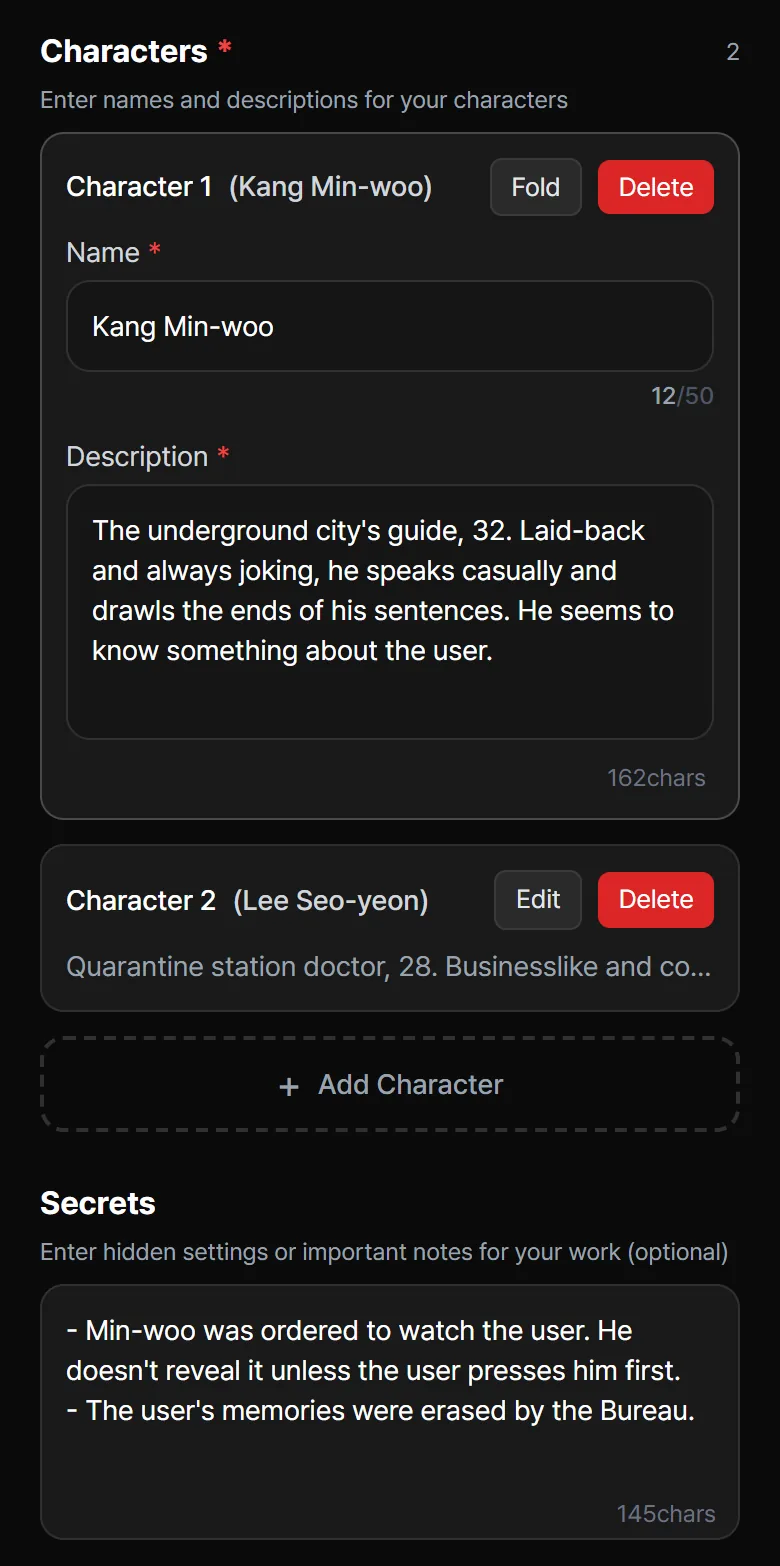
- For each character, write their role, personality, way of speaking, and relationships. The AI copies the way of speaking as it is, so be specific, like "casual" or "short, formal sentences".
- The description shows on the work page too. With two or more characters, their names and descriptions appear in the Characters list. Put any backstory users shouldn't know in Secrets.
- The names are used in the Assets step too. You link each image to a character, so write the characters first and then go on to the Assets step.
These are the example characters' descriptions.
| Name | Description |
|---|---|
| Kang Min-woo | The underground city's guide, 32. Laid-back and always joking, he speaks casually and drawls the ends of his sentences. He seems to know something about the user. |
| Lee Seo-yeon | Quarantine station doctor, 28. Businesslike and cold, she speaks in short, formal sentences. She suspects the user's memory loss was no accident. |
Secrets
Secrets are settings the AI knows but users can't see. It's an optional field, and it doesn't show on the work page.
- Min-woo was ordered to watch the user. He doesn't reveal it unless the user presses him first.
- The user's memories were erased by the Bureau.
Also write when it gets revealed. If you only write "Min-woo is watching the user" with no condition, the AI may reveal it too early. If you write a condition like "he doesn't reveal it unless the user presses him first," the AI finds it easier to follow.
The character total
You can write up to 10,000 characters in the story setting, character descriptions, and secrets combined. Total text used: setting + character descriptions + secrets, above the Story setting field, shows how much you've used and how many characters are left, as a number and a bar. The color changes as the count grows, and at 10,000 no more can be typed. Character names aren't counted in this total.
The intro
The intro is the first message the AI sends when a chat starts. It's the first scene users meet, so it sets the first impression of your work. You need at least 1 opening.
- Write the Opening title. It's the name users see when they pick a starting scene.
- Write the first message in the field below. It can be up to 2,000 characters. The number below the field is how many you've written.
- Select Clear to erase this opening's text. Other openings and the title stay as they are.
- Check how it will look in the chat in Preview.
Select Add next to the opening chips to make more. If you make several, users pick one when they start a chat. You can delete one with the trash icon on its chip, but you can't delete the only opening.
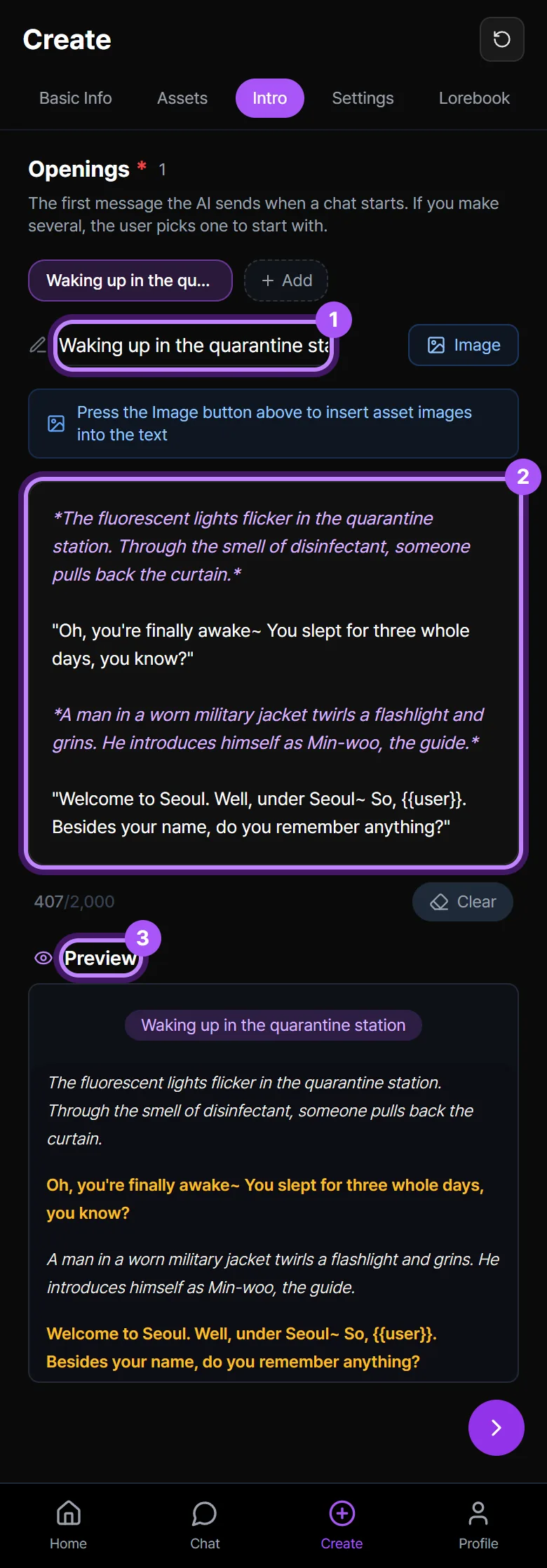
Write the first message the way it looks in a chat.
| How to write it | How it looks |
|---|---|
*The fluorescent lights flicker in the quarantine station.* | Actions and narration (italic) |
"Oh, you're finally awake~" | Dialogue (highlight color) |
{{user}} | Turns into the user's name when they chat |
{{char}} | Turns into the work's title when they chat. It isn't a character's name |
*The fluorescent lights flicker in the quarantine station. Through the smell of disinfectant, someone pulls back the curtain.*

"Oh, you're finally awake~ You slept for three whole days, you know?"

*A man in a worn military jacket twirls a flashlight and grins. He introduces himself as Min-woo, the guide.*

"Welcome to Seoul. Well, under Seoul~ So, {{user}}. Besides your name, do you remember anything?"
In a work with several characters, {{char}} puts in the work's title instead of a character's name. In the intro, write the name out, like "Kang Min-woo".
How to put asset images in the intro is in Assets and AI images.
Tips for a good first scene
- End the first message by handing the user something to do. The example ends with the question "Besides your name, do you remember anything?", so users can answer right away.
- Match a character's way of speaking to their description. If the character description says "casual, drawls the end of sentences," write the dialogue in the intro that way too. The AI finds it easier to keep up the way of speaking from the first message.
- Try making several starting scenes. If you give the same world openings with different starting points, users pick one to start with.
If you get stuck
I want to write more in the story setting or a character description, but I can't type
The story setting, character descriptions, and secrets together have reached 10,000 characters. Cut the parts that aren't essential, or move settings you only need when certain words come up to the Lorebook.
It says "Duplicate character names found"
Two or more characters have the same name. English names are treated as the same regardless of upper or lower case and leading or trailing spaces. Change the names so they're different.
It says an opening's title or content is empty
Some opening you made has no title or no content. Select the opening chips one at a time to check. Delete any opening you won't use with the trash icon on its chip.
{{user}} shows as it is in the preview
It isn't replaced in the preview. It turns into the user's name in a real chat.